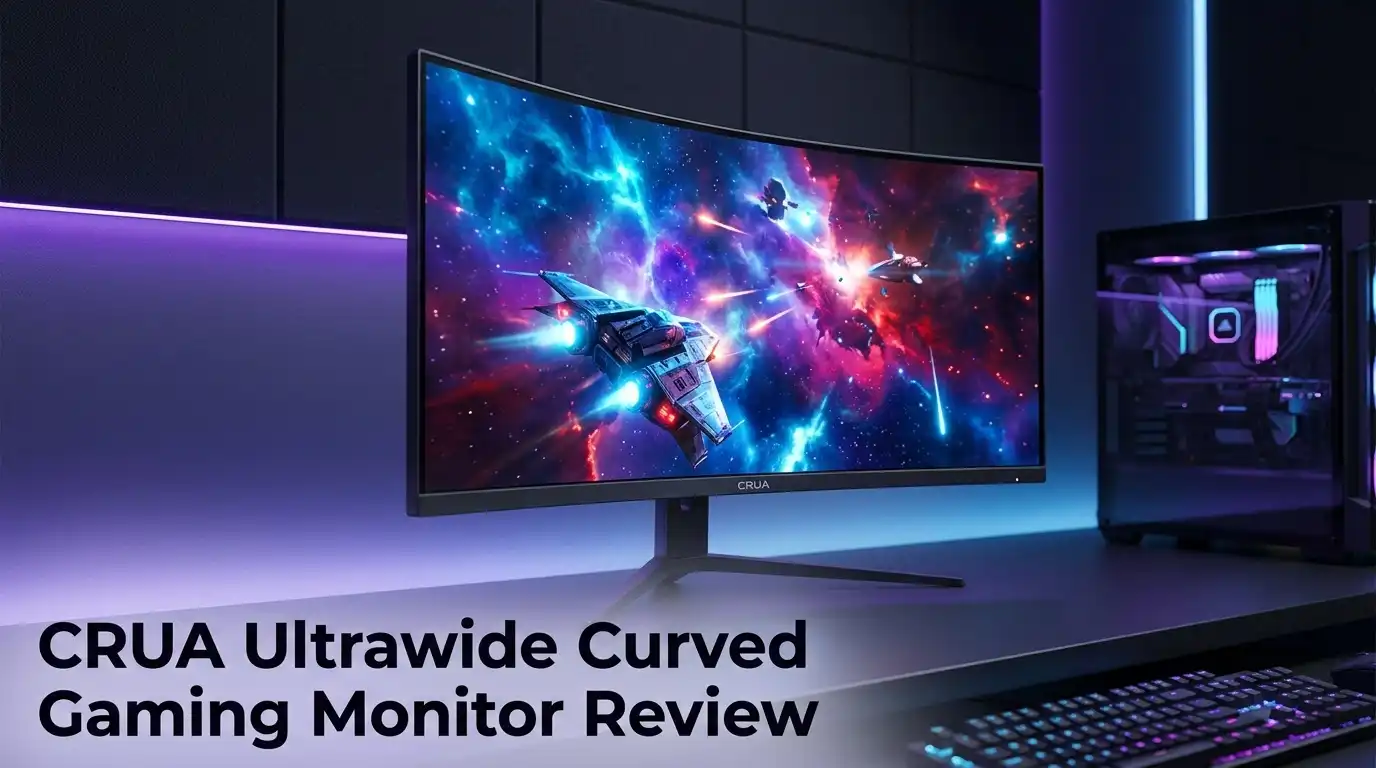
CRUA Ultrawide Curved Gaming Monitor Review 2026
Big screens used to cost big money. That rule broke a while ago, and CRUA is one of the brands that broke it.
The CRUA 34 inch curved ultrawide sells for under $200 most weeks. It offers 3440×1440 resolution, a 165Hz refresh rate, and a 1500R curve. Those numbers usually sit on monitors priced twice as high.
So the obvious question follows. Does a cheap ultrawide feel cheap once it sits on your desk?
I spent several weeks with this panel across gaming, office work, and movie nights. This review covers the good parts, the annoying parts, and the parts nobody mentions in the product listing. You will read about panel brightness, speaker quality, stand wobble, and the settings that actually matter.
In A Nutshell:
- The value is the headline. You get 3440×1440 resolution, 165Hz, and a 21:9 aspect ratio for roughly the price of a decent 27 inch 1440p monitor. Nothing else at this price matches that combination in 2026.
- Gaming feels great, especially racing and sim titles. The 1500R curve wraps around your view. Forza, Flight Simulator, and racing games gain real presence on this panel.
- Colors look good but not excellent. The VA panel covers around 120% sRGB and shows deep blacks. Colors lean slightly muted out of the box and need calibration.
- Brightness is the biggest weakness. Rated around 300 to 380 nits, the screen struggles in a bright room with windows behind you. Night gaming looks far better than daytime gaming.
- The stand only tilts. No height adjustment and no swivel. Most buyers end up using books, a riser, or a VESA arm.
- Speakers exist, but treat them as an emergency backup. They sound thin and distorted at higher volume. Plan on headphones or desk speakers.
CRUA 34 Inch WQHD 165Hz Ultrawide Curved Gaming Monitor

Last update on 2026-10-06 / Affiliate links / Images from Amazon Product Advertising API Some of the links on this website are affiliate links, which means that at no additional cost to you, I earn a commission if you click through and make a purchase. I only recommend products and services that I believe will add value to my readers. Thank you for your support!
This is the model most people mean when they search for a CRUA ultrawide. It measures 34 inches across, uses a VA panel, and carries a 1500R curve.
The resolution sits at 3440×1440 in a 21:9 shape. That gives you about 33% more horizontal space than a standard 16:9 screen at the same height.
The refresh rate tops out at 165Hz over DisplayPort 1.4. HDMI 2.0 caps at 100Hz, so cable choice matters more than most buyers expect.
CRUA lists a 1ms MPRT response time. Real world pixel response sits slower than that figure, which I cover later in the motion section.
Color coverage lands around 120% sRGB with 16.7 million colors. Contrast is the strong point here, since VA panels naturally produce deeper blacks than IPS panels.
AMD FreeSync handles tearing, and the panel works fine with GSync compatible mode on Nvidia cards in my testing.
Ports include HDMI 2.0, DisplayPort 1.4, and a 3.5mm audio out. The rear supports a 75x75mm VESA mount, which is smaller than the common 100x100mm pattern, so check your arm before buying.
The frame uses thin bezels on three sides with a plastic chassis and a metal stand base. Weight stays low, around 15 pounds assembled.
The pitch is simple. CRUA sells premium panel specs and saves money everywhere else.
Unboxing Experience And First Setup
The box arrives large but light. CRUA packs the panel between thick foam blocks, and my unit shipped without a scratch or dead pixel.
Inside you get the panel, the stand arm, the metal base, a power supply, and a DisplayPort cable. The included DisplayPort cable matters, since many budget brands ship HDMI only and quietly cap you at 100Hz.
Assembly takes about four minutes. The arm slots into the panel, one thumbscrew locks the base, and no screwdriver is needed.
The screen protector film peels off cleanly, which sounds minor until you meet a monitor where it does not.
First power on gave me a bright blue CRUA logo and a default picture mode that looked oversaturated. That is normal for budget monitors, and the fix takes two minutes in the menu.
Windows detected the native 3440×1440 resolution right away. The 165Hz option did not appear until I switched cables and enabled the overclock setting in the display menu.
That step trips up a lot of first time buyers. You must enable the higher refresh rate manually in both the monitor menu and your graphics driver.
The stand base has a small footprint for a 34 inch screen. It leaves room for a keyboard and mouse without crowding.
My honest first impression was mild surprise. It looks like a $350 monitor sitting there, right up until you try to raise the height.
Design, Build Quality And Stand Limits
The design plays it safe, and that works in its favor. You get a matte black plastic rear, thin side bezels, and no gamer lighting or aggressive angles.
CRUA also sells a white version, which looks sharp in a light themed setup. Both share the same chassis.
The stand base uses metal, so it adds enough weight to keep the panel planted. The arm itself is plastic and flexes if you push it.
Here is the honest problem. The stand tilts and nothing else.
No height adjustment. No swivel. No pivot. For a screen this wide, that limitation shows up fast if your desk sits high or your chair sits low.
I ended up placing the base on a small wooden riser to lift the center of the screen to eye level. A cheap monitor arm solves this properly, but remember the 75x75mm VESA pattern.
Desk knock wobble is real. Type hard on a hollow desk and the panel jiggles for a second before settling.
Cable management amounts to a small notch in the arm. It handles two cables and gives up after that.
Build quality overall feels fair for the money. Nothing creaks under normal handling, and the panel sits flat without visible gaps.
Just do not expect the solid metal feel of an LG or Dell ultrawide. CRUA saved money here so it could spend it on the panel.
Top 3 Alternative for CRUA Ultrawide Curved Gaming Monitor

Last update on 2026-10-06 / Affiliate links / Images from Amazon Product Advertising API Some of the links on this website are affiliate links, which means that at no additional cost to you, I earn a commission if you click through and make a purchase. I only recommend products and services that I believe will add value to my readers. Thank you for your support!
LG UltraWide QHD 34 Inch Curved Monitor


Last update on 2026-09-09 / Affiliate links / Images from Amazon Product Advertising API Some of the links on this website are affiliate links, which means that at no additional cost to you, I earn a commission if you click through and make a purchase. I only recommend products and services that I believe will add value to my readers. Thank you for your support!
Samsung 34 Inch Odyssey G5 Ultra Wide Gaming Monitor

Last update on 2026-10-06 / Affiliate links / Images from Amazon Product Advertising API Some of the links on this website are affiliate links, which means that at no additional cost to you, I earn a commission if you click through and make a purchase. I only recommend products and services that I believe will add value to my readers. Thank you for your support!
Sceptre 34 Inch Curved Ultrawide WQHD Monitor
Picture Quality In Everyday Use
The VA panel delivers the trait VA panels are known for. Blacks look deep, and dark scenes hold detail instead of turning into gray haze.
Contrast measures far better than most IPS panels in this price band. Watching a dark film scene feels genuinely satisfying.
Color accuracy is decent rather than great. Out of the box the picture leans cool and slightly muted in nature scenes.
I dropped the color temperature to the warm preset, lowered sharpness a few notches, and set brightness around 80. That combination looked far more natural.
Text renders cleanly at 3440×1440 across 34 inches, which lands near 110 pixels per inch. No scaling needed in Windows.
Viewing angles hold up well from the center seat. Sit off to one side and you will notice a slight shift in gamma, which is standard VA behavior.
Uniformity on my unit was acceptable. A little backlight glow appeared in the bottom corners on a full black screen, visible only in a dark room.
Brightness is the real ceiling. Rated near 300 to 380 nits, it looks fine in a normal room and washes out with a bright window behind you.
The HDR label on budget monitors means very little, and that holds true here. Leave HDR off and enjoy the good SDR picture instead.
For photo editing or color critical work, look elsewhere. For gaming, streaming, and office use, the picture pleases far more than it disappoints.
Gaming Performance At 165Hz
This is where the monitor earns its keep. Ultrawide gaming changes how games feel, and 165Hz keeps everything fluid.
Racing games benefit most. The curve and the extra horizontal space put more track and more mirrors inside your peripheral vision.
Flight sims and space sims gain the same advantage. Cockpit views fill the screen instead of floating in a small box.
First person shooters look excellent and play well, though competitive players should know a wider field of view spreads your attention. If you chase ranked points, a flat 27 inch 240Hz panel remains the sharper tool.
Story driven games like open world adventures look cinematic on this shape. The curve pulls the edges toward you and reduces the flat window feeling.
FreeSync worked without stutter on my AMD card between roughly 48Hz and 165Hz. Nvidia cards accepted GSync compatible mode after a manual toggle in the control panel.
Input lag felt low in normal use. I never noticed a delay between mouse movement and screen response during hours of play.
One practical note on hardware. Driving 3440×1440 at high frame rates needs a real graphics card, roughly an RTX 4060 or RX 7600 at minimum for modern titles.
A cheap monitor paired with an underpowered GPU produces disappointment. Budget for both.
Older esports titles run past 165 frames easily and feel wonderfully smooth here.
Response Time, Ghosting And Motion Clarity
CRUA advertises 1ms, and that number comes from MPRT measurement rather than true pixel transition speed. Real gray to gray performance sits slower.
VA panels carry a known weakness called black smearing. Dark objects moving across dark backgrounds leave a faint trail.
You will see it in dark corridors and night scenes. Whether it bothers you depends on your sensitivity and your game library.
The overdrive setting helps. The menu offers off, normal, and extreme options.
I settled on normal. Extreme introduced overshoot, which shows up as bright halos behind moving objects, and that looked worse than the smearing it fixed.
In bright scenes motion looks clean. Fast panning across a daylight map produced no distracting blur at 165Hz.
Compared to a good IPS ultrawide, this panel loses on dark scene clarity and wins on contrast. That trade sits at the heart of every VA versus IPS decision.
Compared to other monitors near this price, the performance is competitive. Cheap IPS ultrawides often have their own issues with washed out blacks and backlight bleed.
For casual and mid level gaming, motion handling is good enough that you stop thinking about it after a week.
For serious competitive play, the smearing is a genuine drawback worth knowing before you order.
Productivity, Multitasking And PIP Support
Ultrawide screens shine at work, and this one handles the job well. Two full browser windows sit side by side with room to spare.
Video editors get a longer timeline. Spreadsheet users see far more columns without scrolling.
Coders can run an editor, a terminal, and documentation across one screen. The workflow improvement is real and immediate.
Windows Snap layouts handle the width nicely. Third party tools like FancyZones split the screen into custom thirds if you want tighter control.
The monitor includes PIP and PBP modes on select variants, letting you show two input sources at once. That helps if you run a work laptop and a personal PC.
Text clarity holds up over long sessions. The pixel density matches a standard 27 inch 1440p monitor, so no eye strain from fuzzy fonts.
Low blue light mode and a flicker free backlight are both included. I used the low blue light setting for evening work and found it helpful.
The lack of height adjustment hurts more in office work than in gaming. Long typing sessions at the wrong screen height cause neck fatigue.
Fix the ergonomics before you commit to eight hour work days on this monitor. A riser or arm costs little and changes everything.
Built In Speakers And Audio Quality
Some CRUA models include speakers and some do not. Check the exact listing before ordering, since the difference is easy to miss.
If your unit has them, set expectations low. The drivers are small, downward facing, and tuned for basic sound only.
Voices come through clearly enough for a video call or a tutorial. Music sounds thin, with no bass and harsh treble.
Push the volume past roughly 60% and distortion arrives quickly. These are backup speakers, not a reason to buy the monitor.
The 3.5mm audio out port is the better path. Plug in desk speakers or a headset and forget the internal drivers entirely.
Audio passthrough over HDMI and DisplayPort worked without setup issues in Windows. The output device appeared in the sound panel right away.
Console users can route audio through the monitor to a headset, which keeps cable clutter down.
There is no USB hub on this model, so no headset dongle port and no keyboard passthrough. That is a normal omission at this price.
If you already own speakers or a headset, none of this matters. If you planned to rely on the monitor for sound, plan again.
Budget an extra $30 for a small pair of desk speakers and the experience improves dramatically.
What This Monitor Does Not Do Well
Every honest review needs this section, so here is the plain list of shortcomings.
Brightness disappoints in sunny rooms. Around 300 to 380 nits is enough for controlled lighting and not enough for a desk facing a window.
The stand only tilts. No height, no swivel, no pivot, and a 75x75mm VESA pattern that some arms do not support.
Black smear appears in dark fast motion. VA panels do this, and overdrive settings reduce it without removing it.
HDR is a checkbox, not a feature. The panel lacks the brightness and local dimming to make HDR content look better.
Speakers underperform. Thin sound and early distortion make them a last resort.
Color accuracy needs manual tuning. The default picture mode looks oversaturated and cool.
HDMI caps at 100Hz. You must use DisplayPort and enable the refresh setting manually to reach 165Hz.
Brand support is limited. CRUA is a smaller company, and reports of mixed customer service and shorter panel lifespan appear in owner forums. Several long term owners on Reddit reported failures after a couple of years.
Quality control varies. Most units arrive fine, but backlight bleed and dead pixel complaints show up more often than with major brands.
None of these kill the value proposition. All of them deserve consideration before you click buy.
Pros And Cons
Here is the fast summary after weeks of daily use.
Pros
- Excellent price for a 34 inch 3440×1440 ultrawide, often under $200
- Smooth 165Hz refresh rate over DisplayPort with FreeSync support
- Deep blacks and strong contrast from the VA panel
- 1500R curve adds real immersion in racing and simulation games
- Thin bezels and a clean design that suits any desk theme
- Quick assembly with no tools and a DisplayPort cable included
- Around 120% sRGB coverage looks vivid after basic calibration
- Small stand footprint leaves desk space free
- Low blue light and flicker free modes for long sessions
- PIP and PBP support on select models
Cons
- Peak brightness struggles in bright daylight rooms
- Stand tilts only, with no height or swivel adjustment
- Black smearing appears during dark fast motion scenes
- HDR support adds nothing meaningful to the picture
- Built in speakers sound thin and distort at higher volume
- HDMI limited to 100Hz, so DisplayPort is required for 165Hz
- 75x75mm VESA pattern is less common than 100x100mm
- No USB hub or extra connectivity features
- Default color settings need manual adjustment
- Long term reliability record is less proven than major brands
Who Should Buy This Monitor
This monitor fits a specific buyer, and knowing whether you are that buyer saves regret.
Buy it if you want your first ultrawide without spending $400. The jump from 16:9 to 21:9 changes gaming and work more than any spec upgrade at this price.
Buy it if you play racing games, flight sims, open world games, or story driven titles. Those genres take the fullest advantage of the shape and curve.
Buy it if you work in a room with controlled lighting. Evening gamers and basement setups will never notice the brightness ceiling.
Buy it if you already own a monitor arm or plan to buy one. That single accessory removes the largest complaint about this product.
Skip it if you edit photos or video professionally. Color accuracy and brightness both fall short of what that work requires.
Skip it if you play competitive shooters at a high level. Faster flat panels serve you better.
Skip it if your desk sits under a bright window. You will fight the brightness every afternoon.
Skip it if you need long term reliability with strong warranty backing. Established brands cost more and carry more support behind them.
For everyone else, the value here is hard to argue with.
Price And Value In 2026
Pricing moves around, and CRUA runs frequent discounts. The 34 inch curved model usually lands between $170 and $220 depending on color and sale timing.
Compare that to the alternatives. The LG UltraWide 34 inch curved sits around $300 to $350, and the Samsung Odyssey G5 sits near $300.
That is a gap of over $100 for similar core specs. The premium brands give you better brightness, better build quality, better stands, and stronger support.
The CRUA gives you the same resolution, the same refresh rate, and the same screen size for less money.
The value math works if you accept the compromises knowingly. It fails if you expect the CRUA to match a $350 monitor in every category.
Watch for sales around major shopping events. I have seen this panel drop near $160, which makes it almost impossible to beat.
Consider the total cost too. Add a $35 monitor arm and $30 speakers and you sit around $250 with a much better experience.
Even at that total, you save money against the name brands.
My value verdict is straightforward. Few products deliver this much screen for this little money, and the compromises are visible rather than hidden.
Final Verdict
The CRUA 34 inch curved ultrawide is a good monitor with clear limits. That combination is rarer than it sounds.
It delivers the ultrawide experience honestly. The resolution is sharp, the refresh rate is fast, the contrast is strong, and the curve adds real presence to games.
It also cuts corners in visible places. Brightness, stand adjustment, speakers, and HDR all fall short.
The important point is that none of the weaknesses are hidden traps. You know about them before you buy, and most have cheap fixes.
I would recommend it to a friend upgrading from a 24 inch or 27 inch flat monitor on a tight budget. That person will love the change.
I would steer a professional or a competitive player toward something else. Their needs sit outside what this panel does well.
Rated against its price, this monitor earns a solid recommendation. Rated against monitors costing twice as much, it comes up short in exactly the ways you would expect.
Buy it for the size and the value. Add a monitor arm on day one. Skip the built in speakers.
Do those three things and you will have a setup that punches far above what you paid.
FAQs
Is the CRUA 34 inch monitor good for gaming?
Yes, for most gamers. The 165Hz refresh rate, 3440×1440 resolution, and FreeSync support handle modern games smoothly. Racing and simulation titles benefit most from the curve. Competitive shooter players may prefer a faster flat panel due to black smearing in dark scenes.
Does the CRUA ultrawide work with PS5 and Xbox Series X?
Yes, both consoles work over HDMI. Consoles output 16:9 rather than true 21:9, so you will see black bars on the sides in most games. HDMI on this model caps at 100Hz, which is fine for console play. A handful of games support ultrawide natively.
How do I get 165Hz on this monitor?
Use the included DisplayPort cable, not HDMI. Open the monitor menu, find the refresh rate or overclock setting, and enable the higher option. Then set 165Hz in Windows display settings under advanced display, or in your graphics driver control panel.
Is the CRUA monitor GSync compatible?
It is not officially certified, but Nvidia GSync compatible mode worked in my testing over DisplayPort. Enable it manually in the Nvidia Control Panel under set up GSync. Results vary between units, so test it after setup.
Can I wall mount or arm mount the CRUA ultrawide?
Yes, using a 75x75mm VESA pattern. That is smaller than the common 100x100mm standard, so verify your arm supports it or buy a cheap adapter plate. Given the tilt only stand, a monitor arm is a worthwhile upgrade.
Is the panel IPS or VA?
The 1500R curved 34 inch model uses a VA panel. VA gives deeper blacks and higher contrast than IPS, with slightly weaker viewing angles and slower dark pixel response. CRUA also sells IPS ultrawide models with a flatter curve.
How long does a CRUA monitor last?
Most owners report normal operation over the first couple of years. Some long term owners in enthusiast forums report panel failures sooner than with major brands. Warranty coverage is typically shorter and support is less established, so factor that into your decision.
Is the CRUA ultrawide bright enough for a sunny room?
Not really. Peak brightness around 300 to 380 nits looks fine in a normal or dim room and washes out with strong daylight behind you. Curtains or a repositioned desk solve the problem for most setups.

Hello, i’m Ivoria i am the face behind Tech Tracker Blog. I am passionate about my work and love to explore gadgets and share about my experience.