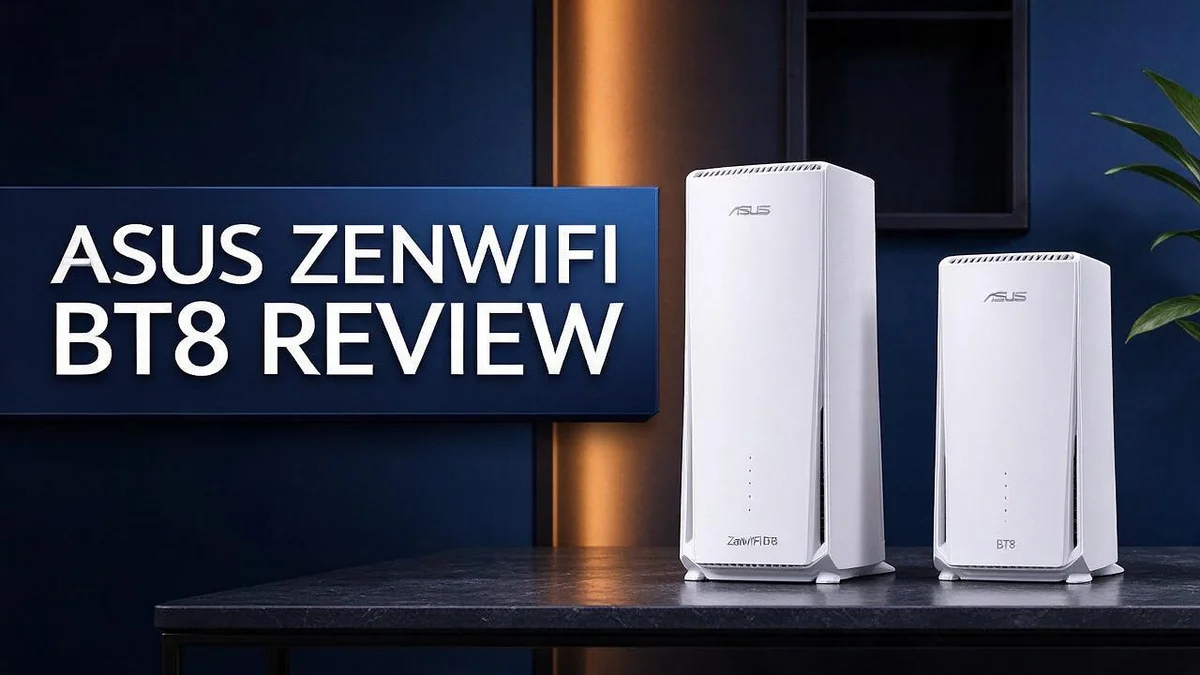
ASUS ZenWiFi BT8 Review: Is It Worth Buying?
Is your home WiFi keeping up with your day? Many households now stream, work, and game all at once. That is why a reliable mesh system matters so much.
Mesh systems spread one network across your home. Each unit acts as a node, so dead zones start to fade. Many shoppers compare options like the ASUS ZenWiFi AX, Google Nest WiFi Pro, and TP Link Deco before they buy.
Some buyers look for a three band setup with WiFi 6E or WiFi 7 support. That feature can keep devices fast when the network gets busy.
In this ASUS ZenWiFi BT8 review, we explain what this system offers and who it suits best. We also share where it shines and where it may fall short. Keep reading to see if it fits your home.
In a Nutshell
-
Mesh WiFi spreads one network across your home. Each unit covers a different area. Your devices connect to the strongest nearby signal, so coverage stays steady as you move around.
-
Busy homes need steady speeds. Streaming, video calls, and online gaming often run at the same time. A mesh setup helps keep these activities smooth in every room.
-
A three band design may matter. Extra bands can carry traffic between the units. Many shoppers look for WiFi 6E or WiFi 7 support when they compare systems.
-
Popular rivals set the bar. Options like the ASUS ZenWiFi AX (XT8), Google Nest WiFi Pro, and TP-Link Deco are common choices. Compare features side by side before you decide.
-
Confirm the full specs first. Check the official product page for speed ratings, band details, and port count. These details help you know if the system fits your plans.
-
Match the system to your home. Larger homes with several floors often gain the most from mesh. Smaller spaces may need fewer units to cover the layout well.
Wi-Fi Standard and Radio Bands


Last update on 2026-11-24 / Affiliate links / Images from Amazon Product Advertising API Some of the links on this website are affiliate links, which means that at no additional cost to you, I earn a commission if you click through and make a purchase. I only recommend products and services that I believe will add value to my readers. Thank you for your support!
Wireless bands decide how your devices talk to the router. Most home systems use the 2.4 GHz and 5 GHz bands. Newer gear also adds the 6 GHz band.
The 2.4 GHz band reaches farther through walls. However, it moves data more slowly. Smart plugs, doorbells, and older gadgets often use this band.
The 5 GHz band offers faster speeds over shorter distances. It works well for laptops, TVs, and phones near a unit.
The 6 GHz band is the newest option. It has more open space, so crowded channels cause fewer slowdowns. Only WiFi 6E and WiFi 7 devices can join it.
Why does this matter for a mesh system? Each unit must share traffic with the others. Some mesh systems use a separate band to link units together.
Standard names matter too. WiFi 6 and WiFi 6E focus on efficiency with many devices. WiFi 7 adds wider channels and higher peak speeds.
Your phone or laptop must support the same standard to see the gains.
Our research did not confirm which WiFi standard the ZenWiFi BT8 supports. Readable sources did not list its specs. So we cannot state its exact band plan here.
Check the official ASUS listing before you decide. Look for WiFi 6E or WiFi 7 labels and the listed band speeds. Compare those details with the devices you own.
Quick tip: Make a list of your gadgets. Note which ones support 6 GHz or WiFi 7. This list shows whether extra bands will help your home.
Most homes do not need every band at full use. A mix of 5 GHz and 6 GHz often covers daily streaming and gaming well.
Pick the setup that fits your devices, not the one with the biggest number. Friendly advice goes a long way here. Ask a family member which devices they use most. Their answers help you pick the right band mix.
Coverage and Mesh Node Performance
Dead spots often frustrate people more than slow speeds. A single router may leave a bedroom or garage with weak signal. Mesh nodes aim to close that gap.
Node placement matters most. Place each node halfway between the main unit and the dead zone. Keep it out of closets and away from large furniture. Good placement gives every room a steady link.
Walls and floors reduce signal strength. Brick, concrete, and metal block more energy than drywall. Thick walls can cut speeds even when the node sits close by. Many households find that a node near the stairs helps upper floors.
Our research did not confirm the node range, node count, or coverage area for the ZenWiFi BT8. We also could not read detailed user tests. Because of this gap, treat any coverage claim with care.
Try a simple test at home. Open a speed test on your phone in each room. Walk from the main node toward the far end of the house. Note where speeds drop sharply. Repeat the test at different times of day.
Nodes often connect to each other through a wireless link. This link is called backhaul. A wired connection can give the nodes a faster path. Check whether the ASUS listing mentions an Ethernet backhaul option. Many mesh systems offer this feature.
Still, a wired link needs cables run through the home. Some renters cannot do that. In that case, place nodes where they hear each other clearly. Look at the signal strength shown in the app. Strong node to node signal keeps the whole system quick.
Think about the devices that sit far from the router. Smart plugs, doorbell cameras, and tablets often live at the edges of the home. These devices need a solid link more than laptops do. Map those spots first.
Competitors like the Google Nest WiFi Pro and TP-Link Deco also use this approach. Comparing their coverage claims can give you a sense of the category. Read independent tests where possible. A little planning saves time later.
Setup and Management App
A mesh system lives or dies by its setup. A clean first run saves time later. This part of the review looks at what the setup process may ask from you.
Our research did not confirm the name of the companion app or how it works for the ZenWiFi BT8. Sources we could read did not describe the setup steps. So this section focuses on what to prepare and what to check before you start.
Many mesh systems rely on a phone app for the first setup. You plug in the main unit, connect your phone to its network, and follow the prompts on the screen.
Gather your details before you begin. Keep your internet provider login, modem model, and admin password close by. Write down your current WiFi name and password so you can match them or pick new ones.
Update the firmware early. Many routers ask for an update during setup. Let it finish fully before you move any units. A half finished update can cause strange errors later.
Change the default admin password right away. Use a long passphrase and store it in a password manager. This step blocks strangers who guess weak logins.
Check the app permissions. Some apps ask for location or Bluetooth access during setup. Read each request and decide if you feel comfortable. Remove the app later if you stop using it.
Confirm the official listing first. Our sources did not show the app store page for this model. Visit the ASUS support site and read the setup guide. Those details give you the most accurate picture.
Once setup ends, run a quick speed check in each room. Then save your settings in a safe place. A little prep now keeps daily management simple.
Top 3 Alternatives
TP-Link Deco XE75

Last update on 2026-11-24 / Affiliate links / Images from Amazon Product Advertising API Some of the links on this website are affiliate links, which means that at no additional cost to you, I earn a commission if you click through and make a purchase. I only recommend products and services that I believe will add value to my readers. Thank you for your support!
If you want a fast mesh system, the TP-Link Deco XE75 is a strong pick. It supports WiFi 6E, so it can use the open 6 GHz band. Your devices can stream and game with less lag.
This kit works well for homes with thick walls or several floors. Each unit covers a good area, and the app makes setup simple. Parents will also like the built in parental controls.
eero Pro 6E

Last update on 2026-11-24 / Affiliate links / Images from Amazon Product Advertising API Some of the links on this website are affiliate links, which means that at no additional cost to you, I earn a commission if you click through and make a purchase. I only recommend products and services that I believe will add value to my readers. Thank you for your support!
The eero Pro 6E brings easy setup and steady coverage. It also supports WiFi 6E and has a clean design that fits in any room. Most people can get it running in just a few minutes.
This system suits families who want a hands off network. Automatic updates help keep the network secure. It also connects well with many smart home devices.
Netgear Orbi RBK753

Last update on 2026-11-27 / Affiliate links / Images from Amazon Product Advertising API Some of the links on this website are affiliate links, which means that at no additional cost to you, I earn a commission if you click through and make a purchase. I only recommend products and services that I believe will add value to my readers. Thank you for your support!
The Netgear Orbi RBK753 offers a strong dedicated connection between its units. The satellites talk to each other on a separate channel. This keeps speeds high even when devices sit far from the main router.
It is a good choice for large homes or busy households. Many people stream video in several rooms at the same time. It uses WiFi 6 to deliver fast wireless connections.
Ports and Wired Connectivity
Wired ports matter more than many people expect. A wired connection gives steady speeds and low delay for devices that stay in one spot.
Our research did not confirm the port layout for the ZenWiFi BT8. Port count, port speed, and port labels are not listed in the sources we could read. Do not guess. Check the official ASUS product page first.
Still, you can prepare before you buy. Start with a simple list of wired devices in your home.
Think about your desktop PC, smart TV, game console, and network storage drive. Each one may benefit from an Ethernet cable instead of WiFi. Write down which rooms they sit in.
Look for a WAN port. The WAN port connects the mesh main unit to your modem or fiber box. Your internet plan sets the speed you need, so pick a port rated at or above that speed.
Look for LAN ports. LAN ports link wired devices to your network. Count how many you need today. Leave one spare for later, such as a new console or a printer.
Port speed deserves a close look. A standard gigabit port tops out near one gigabit per second. If your plan runs faster, a multi gig port keeps your connection from slowing down. Check the spec sheet before you commit.
Cable choice also counts. Cat 6 cable supports gigabit speeds over normal home runs. Cat 5e works for many homes too. Buy cables that match the length you need, and avoid tangled extra slack behind furniture.
Test the wired speed. Plug a laptop into a LAN port and run a speed test. Compare the result with your WiFi speed in the same room. This quick check shows whether the ports deliver the speed your plan promises.
Label each cable with its room. This small step saves time when you troubleshoot later. A clear map also helps when you add a new device.
Security and Parental Controls
Your home network carries banking logins, school files, and family photos. Good security protects all of it. Parental controls add another layer for younger users.
Our research did not confirm which security or parental control features the ZenWiFi BT8 includes. The sources were blocked, so we cannot name specific tools. Check the official feature list before you rely on any of them.
Start with the companion app once setup is complete. Most mesh systems place filters and schedules in a menu. Look for words like family, profiles, or content filter.
Set bedtime limits. Some systems pause internet access on a schedule. This helps children sleep and focus on homework.
Filter content by device. Choose which sites or categories each profile can open. A child’s tablet needs stricter rules than a parent’s laptop.
Create a guest network. Visitors can join the internet without seeing your shared folders or smart home devices. Use a guest password that differs from your main one.
Separate your smart home gadgets. Cameras, plugs, and doorbells often sit on the same network as your laptops. Place them on a separate network when the system allows it.
Review the activity log. Logs show which devices connect and when. Review them once a month so you can spot unknown devices quickly.
Ask about WPA3 support. WPA3 is a newer encryption standard for WiFi. Confirm it on the official product page before you set up your network.
Simple habits work better than complex settings. Revisit your rules as your children grow. Your family will stay safer with rules that fit their age and needs.
Pros and Cons
Pros
- Mesh designs can spread WiFi into hard to reach corners.
- Adding a satellite unit later can extend coverage.
- One network name can help devices roam between rooms and floors.
- Fewer dead spots can mean less time moving your laptop closer to the router.
Cons
- Our research did not confirm the WiFi band support for this model.
- Specs, port layout, and security features remain unverified.
- Mesh units often take up more shelf space than a single router.
- Hands on user feedback was not available in our research.
Who Should Buy It
Not every home needs a mesh system. Every household has different needs, and some will find it a smart fit.
Families with many active users often gain the most. When several people stream, game, and video call at once, one router can slow down.
Remote workers also make good candidates. Long video meetings and large file uploads need a steady connection. Choose a setup that stays stable when the whole household goes online.
Gamers who play online care about lag more than raw speed. Wired connections help, but many players also want a reliable wireless link for consoles in other rooms. Test the response time before you commit.
Renters who move often may like the flexibility. You can pack the units and rebuild your network in a new place. Check your lease first, since some landlords limit equipment changes.
Shoppers who want the newest standards should pause here. One Reddit user in our research wanted three band support or WiFi 7 mesh. If that matters to you, check the official spec sheet before you decide. Those features may matter for future upgrades, so compare the list carefully.
Older adults and less confident users may appreciate a simple setup. Many people prefer to plug in and follow prompts instead of digging through menus. Ask a tech savvy friend to help with the first install.
Light users in small spaces may not need a mesh kit at all. A small apartment with only a few devices may run well on a simpler router. Save your effort for a home that truly needs it.
Think about your daily habits before you choose. Count your devices, measure your space, and note how often your household relies on the internet. Write your list on paper so the answers stay clear. Your answers will point you to the right decision.
Final Verdict
Our research could not confirm the core facts about the ASUS ZenWiFi BT8. Sources stayed blocked, so we cannot name its specs, pros, or cons with confidence. That gap matters.
A verdict built on missing facts would only be a guess.
Still, the research gives some clear direction. One shopper wanted a tri band mesh with WiFi 6E or WiFi 7. That goal makes a useful test.
Check whether this model meets that goal before you buy. Do not assume it does.
The ZenWiFi AX (XT8) makes a helpful reference point. It appeared in a WiFi router roundup, so shoppers already compare it with this family.
Place both models side by side on the official ASUS page. Look at band support, LAN port speeds, and listed security features. Note any differences in the physical design too.
Your next step is simple. Read the spec sheet line by line. Confirm the WiFi standard, the number of bands, and the port speeds.
If any detail is missing, treat that as a warning sign. Missing information often signals a gap you will feel later.
Check the return window too. A clear return policy gives you room to test the system at home. Keep the box and packaging until testing finishes.
Run a wired speed test from a laptop plugged into a LAN port. Then run wireless tests in the rooms you use most.
If the results match your daily needs, keep the system. If they fall short, send it back and try another model.
Our honest answer is this. The ZenWiFi BT8 may suit a home that needs wide coverage. We cannot promise that from this research.
Verify the facts first, then decide with confidence. A careful check now saves time and frustration later. Your home network deserves a solution you understand, not a guess.
Frequently Asked Questions
Is the ZenWiFi BT8 the same as the ZenWiFi AX?
No readable source links these two names. The ZenWiFi AX (XT8) appears in a 5 Best WiFi Router 2024 list, but that list does not mention the BT8. Treat them as separate models until ASUS confirms otherwise.
Which rivals should I compare it with?
Our research named several rivals. These include the ASUS RT-AX55, TP-Link Deco, Google Nest Wifi Pro, and Amazon eero. Choose two or three of these. Test each one in the same room with the same phone, so the results stay fair.
What should a tri band or WiFi 7 buyer check?
One Reddit user wanted a tri band WiFi 6E or WiFi 7 mesh system. Look for those exact labels on the box and the spec sheet. If the labels are missing, ask ASUS support in writing before you buy.
Do mesh kits need a wired link between units?
Some mesh kits link their units through a cable. Others use the air alone. A wired link often keeps speeds steadier, but it needs a cable run between rooms. Check the spec sheet for the backhaul method before you decide.
How can I check coverage at home first?
Walk through your home with a phone and run a quick speed test in each room. Write down the rooms where speeds drop. These weak spots show where extra coverage would help most. This simple habit gives you a clear picture of your needs.

Hello, i’m Ivoria i am the face behind Tech Tracker Blog. I am passionate about my work and love to explore gadgets and share about my experience.