How To Fix KVM Switch USB Dropout Between Computers?
Picture this. You just switched your KVM from your work laptop over to your gaming PC. Your monitor lights up perfectly. But your keyboard and mouse? Nothing. Dead silence.
You wiggle the mouse, tap every key, and wait. Five seconds pass. Then ten. Suddenly everything reconnects with that familiar Windows chime. Frustrating, right?
This exact scenario plays out in home offices and server rooms every single day. USB dropout on a KVM switch is one of those problems that seems small until you experience it ten times an hour.
Key Takeaways
- USB dropout happens because of power, drivers, or signal integrity. Most disconnections trace back to three root causes. The KVM does not receive enough power from the USB bus. Windows puts the USB port to sleep through power saving. Or the signal degrades across a long or low quality cable.
- Disabling USB Selective Suspend fixes about half of all dropout cases. This single Windows setting causes more grief than any other factor. Turn it off first before trying anything else.
- A powered USB hub placed between the KVM and your peripherals can act as a buffer. The hub maintains a constant connection to the computer even when the KVM switches away. This trick solves dropout for many users.
- Cable quality and length matter much more than people assume. A cheap six foot USB cable can introduce enough voltage drop to cause intermittent disconnections. Swap it for a short, thick, well shielded cable.
- Some KVM switches simply have poor USB emulation chips. Budget KVMs use older controller chips that do not hold a steady USB handshake across switching events. Sometimes you need a better switch.
- BIOS settings, firmware updates, and ground loops can all play a role. These are the less common but equally real culprits. Do not ignore them if the basic fixes fail.
Understand Why USB Dropout Happens on KVM Switches
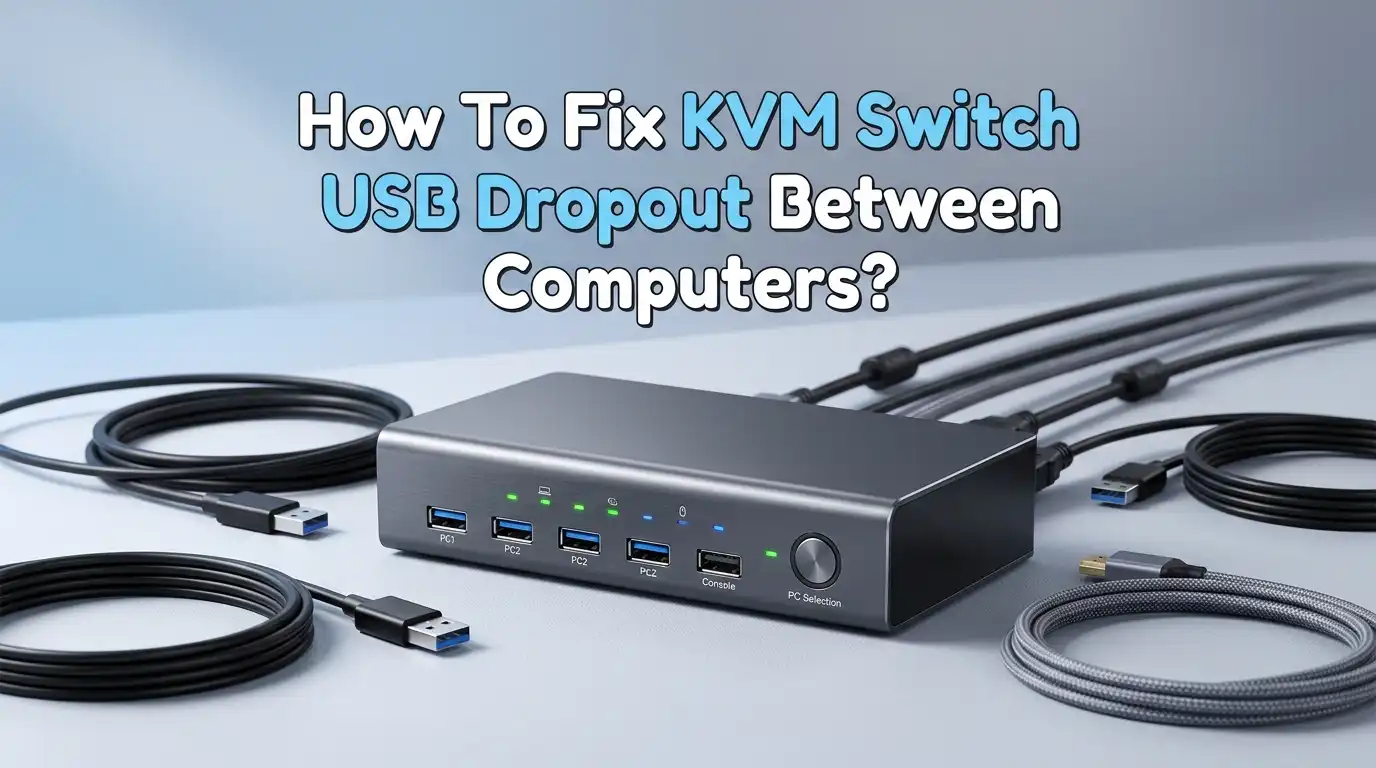
A KVM switch lets you control multiple computers with one keyboard, one mouse, and one monitor. When you press the button to switch from Computer A to Computer B, the KVM physically disconnects your USB peripherals from Computer A and reconnects them to Computer B.
This is not a seamless handoff. It is a full disconnect followed by a full reconnect. Each computer has to detect the USB device, load its driver, and establish communication from scratch. This process takes time. During that window, your keyboard and mouse appear dead.
For most people, this takes one to three seconds. That is normal and expected. The problem starts when the reconnect never happens, or when it loops endlessly between connect and disconnect states. The underlying cause is almost always a failure in the USB handshake protocol.
The KVM tries to present your devices to the new computer, but something interrupts that negotiation. Power delivery drops below the threshold. The cable introduces too much noise.
Windows power management kicks in and suspends the port. Or the KVM itself uses a cheap USB controller that does not reliably emulate device presence. Understanding this helps you target the right fix.
Disable USB Selective Suspend in Windows
This single setting causes more KVM dropout problems than any other factor. Windows includes a power saving feature called USB Selective Suspend. When Windows thinks a USB port is idle, it cuts power to that port to save energy. The problem?
A KVM switch often looks like an idle device to Windows. So Windows suspends the port right when you need it most. This creates the exact connect disconnect loop that drives everyone crazy. Here is how to turn it off. Open Control Panel and go to Power Options.
Click “Change plan settings” next to your active power plan. Then click “Change advanced power settings.” In the new window, scroll down to “USB settings” and expand it. Expand “USB selective suspend setting” and set both “On battery” and “Plugged in” to “Disabled.” Click Apply and OK.
Restart your computer for the change to take full effect. Do this on every computer connected to your KVM. This one step alone resolves dropout for roughly half of all users reporting this issue online. If you still experience problems after this, do not worry. You have more tools in the toolbox.
Turn Off Power Saving on Individual USB Root Hubs
Disabling Selective Suspend globally is a great start. But Windows also applies power management to individual USB controllers at the hardware level. These settings live in Device Manager and they override the global power plan in some cases. Open Device Manager by right clicking the Start button.
Scroll down to “Universal Serial Bus controllers” and expand the list. You will see several entries labeled “USB Root Hub” and “Generic USB Hub.” Right click each one, select Properties, and go to the Power Management tab.
Uncheck the box that says “Allow the computer to turn off this device to save power.” Click OK. Repeat this for every USB Root Hub and Generic USB Hub in the list. Yes, there might be ten or more.
It takes a few minutes but it closes every loophole Windows might use to cut power to your KVM connected devices. Some users report that Windows updates occasionally re enable these checkboxes. Make a habit of checking them again after major system updates.
This fix pairs well with the Selective Suspend fix above. Together they eliminate power management as a cause of dropout on the Windows side. For Linux users, a similar concept applies. You can disable USB autosuspend using a kernel parameter or through your distribution’s power settings.
Use a Powered KVM Switch Instead of a Bus Powered One
Not all KVM switches are built the same way. Some draw all their power from the USB ports of your connected computers. These are called bus powered KVMs. Others come with their own external power adapter that plugs into a wall outlet. These are called powered KVMs.
The difference matters enormously for USB stability. A bus powered KVM splits the available USB current between its own internal chipset and all your connected peripherals. A typical USB 2.0 port provides 500mA. A USB 3.0 port provides 900mA. Your keyboard might draw 100mA.
A gaming mouse with RGB lighting can draw 300mA or more. The KVM itself needs power too. When the total demand exceeds what the computer’s USB port can supply, voltage drops. Devices disconnect. The KVM glitches. A powered KVM solves this by getting its operating current from the wall.
The USB ports on the KVM then receive a clean, stable supply that does not depend on your computer’s USB bus. If you currently use a bus powered KVM and experience frequent dropouts, consider upgrading to a model with its own DC power adapter.
Insert a Powered USB Hub Between the KVM and Your Peripherals
Here is a clever trick that many power users swear by. Instead of plugging your keyboard and mouse directly into the KVM switch, plug a powered USB hub into the KVM and connect your peripherals to that hub. Why does this work?
The powered hub maintains an active, stable USB connection at all times because it has its own wall power. When the KVM switches away from Computer A, the hub stays powered and keeps the keyboard and mouse alive locally.
When the KVM switches back to Computer A, the computer sees the hub as a device it already knows. It does not need to re enumerate every individual peripheral behind the hub. This reduces the reconnect time and eliminates many handshake failures.
The hub effectively acts as a buffer or a middleman that absorbs the disconnect event. This setup has another benefit. You can connect multiple USB devices through one port on the KVM. If your KVM only has two USB ports, the hub lets you connect four or more devices without overloading the KVM’s internal power budget.
Just make sure you buy a quality powered hub with a genuine power adapter. Cheap unpowered hubs defeat the purpose. Some KVMs do not play nicely with hubs behind them, so test this before relying on it for daily work.
Replace Your USB Cables with Shorter, Higher Quality Ones
USB cables are not all the same. A thin, poorly shielded cable that came free with a device can cause signal degradation over longer distances. USB signals weaken as cable length increases. Beyond certain thresholds, the signal becomes unreliable and devices disconnect.
The official USB specification limits passive cable length to about 5 meters for USB 2.0 and about 3 meters for USB 3.0. But in the real world, even a 6 foot cable can cause problems if it uses thin gauge wire and poor shielding.
Interference from nearby power cables, monitors, and wireless devices adds noise to the signal. The KVM switch is already a point of signal complexity. Adding a long, cheap cable on either side of it multiplies the problem. The simplest fix?
Replace every USB cable in your KVM setup with a cable that is as short as practical and built with proper shielding. Look for cables with ferrite beads near the connectors. These small cylindrical bumps filter out high frequency noise. Use cables that are thick and have gold plated connectors if possible.
Many users fix their dropout issues simply by swapping a 10 foot USB cable for a 3 foot one. Cable quality matters just as much as cable length. Do not use the thin charging cables that came with your phone. Use data grade cables designed for consistent high speed communication.
Update Your Chipset and USB Controller Drivers
Software matters. The USB controller on your motherboard talks to Windows through a driver. If that driver is outdated or buggy, it may mishandle the device reconnect sequence triggered by your KVM switch.
This is especially common on AMD based systems, where certain chipset drivers had known USB connectivity bugs for years. Intel systems are not immune either. Outdated chipset drivers can cause intermittent USB dropouts that look exactly like KVM problems. Here is what to do.
Visit your motherboard manufacturer’s support page. Download the latest chipset driver package for your specific model. Install it and reboot. Do the same for any separate USB controller drivers listed on the support page. If you use an add in USB expansion card, visit that card manufacturer’s website too.
For laptop users, check your laptop manufacturer’s driver download page. After updating, go back into Device Manager and verify that no USB devices show a yellow warning triangle.
Sometimes the update process reveals a previously hidden driver conflict. BIOS updates also include USB controller fixes. Check your motherboard support page for any BIOS updates that mention “USB stability” or “USB compatibility” in the release notes. This step takes more effort than flipping a setting, but it resolves deeper compatibility issues that no surface tweak can fix.
Adjust BIOS and UEFI Settings Related to USB Power
Your computer’s BIOS or UEFI firmware controls how USB ports behave at the lowest hardware level. Many BIOS menus include settings that affect USB power delivery during different system states. These settings can interfere with KVM switch operation.
Reboot your computer and enter the BIOS setup by pressing Delete, F2, or whatever key your system uses. Look for settings under categories like “USB Configuration,” “Power Management,” or “Advanced.”
Disable any setting named “USB Legacy Support” only if you do not need to use USB devices before Windows loads. Some KVMs rely on legacy USB emulation to work during boot. Others conflict with it. Test both settings and see which works better. Look for “ErP Ready” or “EuP Ready” power settings.
These energy saving standards can cut USB power when the computer enters certain low power states. If your KVM disconnects when the computer sleeps, try disabling ErP Ready mode. Also check for “USB Power Delivery in Soft Off State.”
This setting controls whether USB ports provide power when the computer is shut down but still connected to mains. Enable this if you want your KVM to keep working with the other computer when this one is off. Every motherboard vendor labels these settings differently, so you may need to explore a bit. Make one change at a time and test thoroughly.
Check for Ground Loop and Electrical Interference Issues
Ground loops occur when two or more devices in your setup have slightly different ground voltage potentials. This creates a small current that flows through the shielding of your cables. That current introduces noise into USB signals. The result?
Random disconnects, erratic mouse movement, and keyboard keys that stick or repeat. Ground loops are sneaky because they do not cause visible problems. Everything looks fine until you switch the KVM and devices drop out. Here is how to test for this.
Unplug every device from power except your two computers, your monitors, and the KVM. Disconnect all USB chargers, external hard drives, USB powered desk lamps, and anything else plugged into a USB port or wall outlet.
Test the KVM with this minimal setup. If the dropout stops, something you unplugged was causing a ground loop. Reconnect devices one at a time to find the culprit. Common sources include USB hubs with their own power adapters, powered speakers connected to the same power strip, and monitors with built in USB hubs that create ground paths between computers.
The fix is usually to plug all computer equipment into the same power strip or outlet. This equalizes ground potential. Also try using USB cables with ferrite chokes to block high frequency ground noise.
Switch USB Ports and Avoid USB 3.0 Ports for KVM Connections
This trick sounds too simple to work. But it has helped many people. Some KVM switches, especially older or budget models, do not handle USB 3.0 ports well. USB 3.0 uses additional data lanes and higher signaling frequencies compared to USB 2.0. The KVM’s internal chipset may not negotiate this correctly.
Plugging the KVM into a USB 2.0 port instead of a USB 3.0 port can instantly resolve dropouts. Try every USB port on your computer. Front panel ports, rear motherboard ports, USB 2.0 ports, and USB 3.0 ports all connect to different internal USB controllers on the motherboard.
One controller may handle the KVM perfectly while another drops it constantly. Rear ports directly on the motherboard typically provide more stable power than front panel ports, which route through internal header cables. Also avoid connecting your KVM through a monitor’s built in USB hub.
These pass through connections add another layer of signal processing that can confuse the KVM. If your computer has both Intel and third party USB controllers, try ports on both. You can identify which controller a port uses through Device Manager.
Right click a USB Root Hub, select Properties, and check the Details tab for the controller manufacturer. This small port swapping exercise costs nothing and takes two minutes. It surprises people how often it works.
Perform a Full Power Cycle Reset of the KVM Switch
Sometimes the KVM switch itself gets stuck in a confused state. Its internal microcontroller can encounter a race condition or a buffer overflow that persists until power is completely drained. A simple button press or unplugging the USB cable does not fully reset the device.
Capacitors inside the KVM hold residual charge for several seconds after you disconnect power. To perform a proper power cycle, unplug every cable from the KVM switch. This includes USB cables to computers, HDMI or DisplayPort cables, the power adapter if it has one, and all peripheral connections.
Leave everything disconnected for at least 30 seconds. Some manufacturers recommend 60 seconds. This gives the capacitors time to fully discharge. Then reconnect only the essential cables. Start with the KVM’s power adapter if it has one. Then connect one computer and one peripheral.
Test the switching behavior. If it works, gradually add the remaining computers and devices. If the dropout returns after connecting a specific device or cable, you have found the trigger.
A full power cycle fixes many transient glitches that build up over days or weeks of continuous operation. Make this your first troubleshooting step before diving into driver updates and BIOS settings. It is fast, safe, and often effective.
Test with Only Keyboard and Mouse, Then Add Devices Gradually
Your KVM switch may be handling more than it can manage. Each USB device you connect draws current and creates data traffic. A basic KVM expects a keyboard and a mouse. Add a webcam, a USB headset, an external storage drive, or an RGB mousepad, and the total load may exceed the KVM’s design limits.
The dropout you blame on the KVM may actually be a brownout caused by too many devices drawing too much power. Strip your setup down to the absolute minimum. Connect only one keyboard and one mouse directly to the KVM. No hubs. No adapters.
No extra devices. Switch between computers several times and observe the behavior. If the dropout stops, you have identified the problem. Start adding devices back one at a time. Test switching after each addition.
When the dropout returns, the last device you added is either drawing too much current or sending USB data that confuses the KVM. For high power devices like webcams and external drives, move them to a separate powered USB hub that connects directly to the computer, bypassing the KVM entirely.
Use the KVM only for keyboard, mouse, and maybe a simple USB audio device. This divide and conquer approach pinpoints the exact cause faster than guessing.
Update KVM Firmware or Consider a Different KVM Architecture
Many modern KVM switches support firmware updates. Check the manufacturer’s website for your model. Download any available updates and apply them according to the instructions. Firmware updates often fix specific USB compatibility bugs that cause dropout with certain chipsets or operating systems.
This is especially true for KVMs that support high refresh rate monitors and USB 3.0 passthrough. The more features a KVM has, the more complex its firmware. Bugs are inevitable. Manufacturers release patches to fix them.
If your KVM has no firmware updates and none of the previous fixes worked, the switch itself may use a USB emulation architecture that simply does not play well with your specific hardware. Some KVMs use what is called “USB DDM” or “Dynamic Device Mapping” technology.
This keeps a virtual copy of each USB device active on every connected computer, even when you switch away. Computers never see a disconnect event. Your mouse and keyboard work instantly because the KVM tricks each computer into thinking the devices are always plugged in.
If you experience persistent dropout despite trying every fix in this guide, a KVM with DDM or always on USB emulation may be the ultimate answer. This is not about buying a random expensive switch. It is about choosing the right architecture for your specific needs.
When to Accept Normal KVM Behavior and Adapt Your Workflow
Some degree of delay when switching a KVM is completely normal. Every KVM must break and reestablish USB connections. Even the best models take a second or two. If your keyboard and mouse reconnect within three seconds of every switch, your KVM is working as designed.
The problem you need to fix is when devices never reconnect or when they loop through connect disconnect cycles for ten seconds or more. If you have applied every fix in this guide and still see brief expected delays, try adapting your workflow.
Pause for a beat after pressing the KVM switch button before typing or moving the mouse. This gives the USB handshake time to complete. Some users press the switch button and immediately start typing, which sends data before the connection stabilizes. That can confuse both the KVM and the computer.
Also check your keyboard and mouse for special features that rely on software drivers. Gaming keyboards with macro engines, RGB control software, and mice with high polling rates all require the computer to reinitialize their software when the KVM switches.
This takes extra time. Temporarily set your mouse polling rate to 125Hz or 250Hz instead of 1000Hz to see if switching becomes faster. Simplify your setup during switching heavy work sessions. The goal is not perfection. The goal is reliable, predictable behavior that lets you get work done.
FAQs
Why does my KVM switch take so long to reconnect my keyboard and mouse?
A KVM switch physically disconnects and reconnects USB devices when you switch computers. Each computer must detect the new device, load its driver, and start communicating. This handshake process naturally takes one to three seconds. If it takes longer than five seconds, check your USB cables, disable USB Selective Suspend, and test with only a basic keyboard and mouse.
Can a cheap USB cable really cause KVM dropout?
Yes, absolutely. Thin cables with poor shielding cause voltage drop and signal degradation. A longer cable makes this worse. USB hubs and KVM switches add connection points that weaken the signal further. A short, thick, well shielded USB cable with ferrite chokes often fixes intermittent dropout instantly.
Does a powered USB hub placed after the KVM actually help?
Many users report that it does. The powered hub maintains its own stable connection to the computer because it draws power from the wall, not the USB bus. When the KVM switches, the computer sees the hub reconnect first, and the individual peripherals behind the hub do not require separate re enumeration. This reduces dropout time and failures.
Should I use USB 2.0 or USB 3.0 ports for my KVM switch?
Start with USB 2.0 ports, especially if you use an older or budget KVM. USB 3.0 uses different signaling that some KVM chipsets do not handle well. If USB 2.0 ports work reliably, stick with them. Most keyboards and mice do not benefit from USB 3.0 bandwidth anyway.
How do I know if my problem is a ground loop?
A ground loop causes erratic behavior that changes when you move cables or touch metal parts of your equipment. To test, unplug everything except the computers, monitors, and KVM. If the dropout stops, reconnect devices one at a time to find the source. Plugging all equipment into one power strip often fixes ground loop issues.
Is it worth updating my motherboard BIOS to fix KVM problems?
Yes, if your motherboard manufacturer has released a BIOS update that specifically mentions USB stability fixes. Many AMD AM4 and AM5 motherboards received USB fix updates over the years. Check the release notes on your motherboard’s support page. Apply the update carefully and test your KVM afterward.

Hello, i’m Ivoria i am the face behind Tech Tracker Blog. I am passionate about my work and love to explore gadgets and share about my experience.