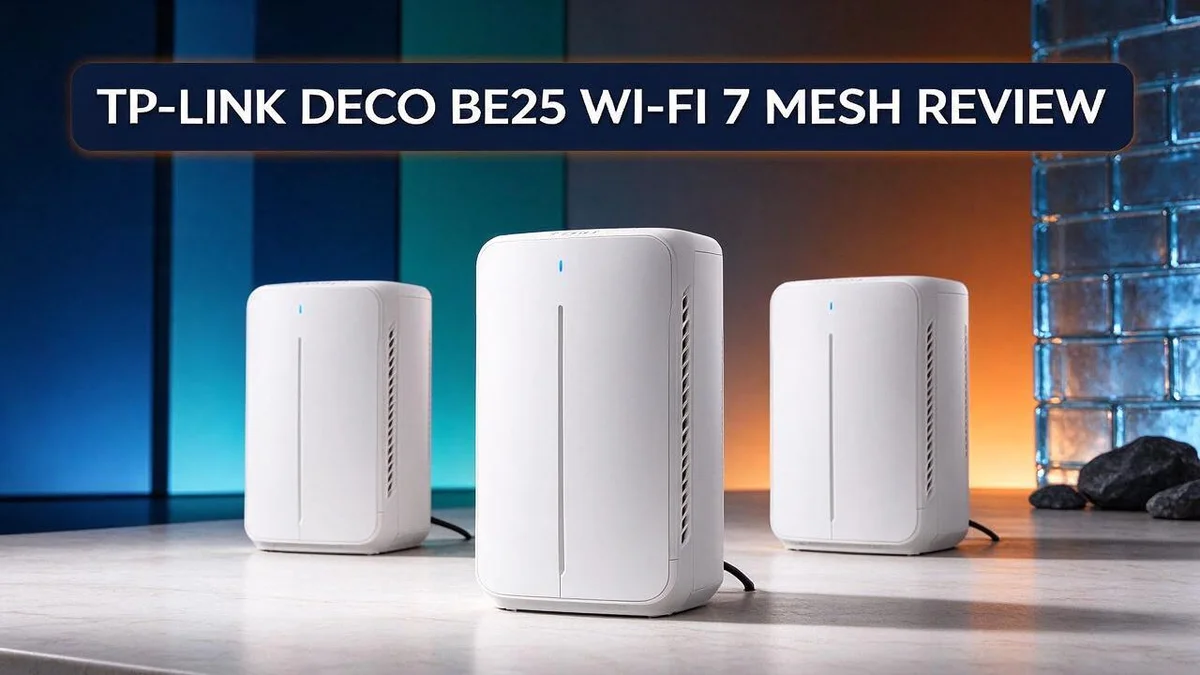
TP-Link Deco BE25 Review: Wi-Fi 7 Mesh Performance and Verdict
Is your Wi-Fi dropping out in the far bedroom? You are not alone. Many people need a stronger network that reaches every corner of the house.
The TP-Link Deco BE25 aims to fix that problem. It uses Wi-Fi 7 with MLO, which helps devices use multiple bands at once. It also delivers BE5000 speeds and offers 2.5Gbps ports for faster wired connections.
Its rated coverage reaches up to 6,600 square feet. That makes it a strong option for larger homes. A May 2026 report also named it Amazon’s top-selling mesh system.
In a Nutshell
- Fast speeds for busy homes: The Deco BE25 delivers BE5000 speeds. Many devices can stream, game, and video call at once.
- Modern wireless standard: It supports the latest Wi-Fi 7 standard with Multi Link Operation (MLO). MLO sends data over several bands at the same time.
- Fast wired ports: Its 2.5Gbps ports help you connect a desktop or gaming console at high speed.
- Strong performance with wired backhaul: Many users say the BE25 shines when its nodes connect by cable. Wired links often give steadier speeds than wireless links.
- A popular pick: Amazon lists it as its top-selling mesh system, which shows strong shopper interest.
- A key tradeoff: The BE25 has no 6 GHz band. Some rivals offer this extra band for less crowded connections.
- Other options to compare: Shoppers often also look at the TP-Link Deco BE33000, Netgear Orbi 970, Linksys Velop Pro 7 BE11000, and TP-Link Deco BE63. Google Nest, Eero, and ASUS also compete in this space.
Hardware and Design


Last update on 2026-11-27 / Affiliate links / Images from Amazon Product Advertising API Some of the links on this website are affiliate links, which means that at no additional cost to you, I earn a commission if you click through and make a purchase. I only recommend products and services that I believe will add value to my readers. Thank you for your support!
Good design makes a mesh system easier to live with. The TP-Link Deco BE25 has a clean look. It suits most living rooms and home offices.
Setup starts with planning. Each unit plugs into a standard wall outlet. You need a power point in every spot.
Pick your locations before you unbox anything. This saves time. It also stops you from moving the units again and again.
Start with the main unit. Place it near your modem, because it connects to the internet through that link.
Next, choose a spot for the second node. Aim for a point roughly halfway between the main unit and your weak signal area.
Walls can weaken signals. Thick concrete and large metal objects cause the most trouble. Keep nodes clear of them when you can.
Open hallways often work better than closets or cabinets. A small change in position can make a big difference in speed.
Cabling needs a bit more thought. If you plan to link nodes with an Ethernet cable, run the cable first. Do this before you mount anything on the wall.
Hide cords along baseboards or behind furniture. Clean cable routes keep your room tidy. They also protect cords from damage.
The status light on each unit helps you check its connection. Watch it during setup. A steady light usually means the node is ready.
A blinking light often means the node is still syncing. Give it a few minutes before you move on.
The companion app guides you through each step. Beginners will find it easy to follow.
Good hardware is only half the job. Test your speed in each room after setup. Walk to your farthest room with a phone and run a quick test.
If the result looks weak, move the node a few feet. Then test again. Small tests help you find the best spot in your home.
Speed and Wi-Fi 7 Performance
Speed is the first thing most people check. Real results depend on your internet plan, router placement, and how many devices share the network.
Wi-Fi 7 helps when many devices connect at once. Phones, laptops, and smart TVs can all stay online without competing as much for space on the network.
Your internet plan sets the upper limit. If your provider delivers 500 Mbps, no router can deliver more than that. The Deco BE25 makes sure your Wi-Fi does not become the bottleneck.
For gaming and video calls, response time often matters more than peak speed numbers. A steady connection keeps lag low, even when someone streams a movie in another room.
Large files also move faster when devices share a wired link. Moving video projects or photo libraries between a desktop and a network drive feels much quicker.
Speed drops as the signal travels farther from the main unit. Each node extends coverage, so distant rooms still get a usable connection.
Try a simple test. Run a speed test on your phone next to a node, then run it again in your farthest room. Compare the two results to spot weak areas quickly.
If you want more radios working at once, the TP-Link Deco BE33000 is worth a look. Shoppers often compare it with the BE25 when they want extra headroom for heavy household use.
For most family homes, the Deco BE25 delivers fast and steady performance. Its Wi-Fi 7 design also gives your network room to grow as new devices join.
Wired Backhaul and 2.5G Port Options
What does wired backhaul actually mean? The mesh nodes talk to each other through an Ethernet cable instead of sending data through the air. That leftover space helps your devices run faster.
Why the 2.5G ports matter. The BE25 offers 2.5G ports, so the link between nodes can carry more data than standard gigabit Ethernet. Your traffic moves with less waiting, especially when several people stream or download at once.
Check your cable type. Cat 6 cables handle 2.5G speeds over short runs. Older Cat 5 cables may cap the speed at one gigabit. Look at the label on the cable jacket before you connect it to your nodes.
Pick the right layout. In a daisy chain, each node links to the next one in line. In a star layout, every node connects back to the main unit. A star layout often keeps speeds steady because data does not pass through a middle node.
Use a switch for extra reach. If your modem sits far from the living room, a small network switch can split the wired link. Place the switch near the nodes and run one cable back to the main unit. This keeps your cable count low and your setup neat.
Keep wireless as a backup. Some rooms lack a wall jack, so the mesh can still use wireless backhaul there. The system chooses the best path on its own. Open the app to see which link type each node uses.
Test the link speed. Open the node details in the app and find the uplink speed for each unit. If the number seems low, swap the cable or try a different port on the node. Then run a quick speed test again.
Give wired devices their own port. Smart TVs, game consoles, and network storage drives work well on Ethernet. Plugging them into the spare LAN port on a node frees up Wi-Fi space for phones and laptops. Decide which device gets that port before you start setup.
Top 3 Alternatives
eero Pro 7

Last update on 2026-11-24 / Affiliate links / Images from Amazon Product Advertising API Some of the links on this website are affiliate links, which means that at no additional cost to you, I earn a commission if you click through and make a purchase. I only recommend products and services that I believe will add value to my readers. Thank you for your support!
The eero Pro 7 brings Wi-Fi 7 speeds to a simple mesh system. It suits homes with fast internet plans and many connected devices. Setup takes only a few minutes through the eero app, so you can get online quickly.
Households that want easy management often appreciate the clean app and automatic updates. Each unit covers a good area, so weak spots shrink fast. Adding more units later is simple.
Netgear Orbi 770

Last update on 2026-11-24 / Affiliate links / Images from Amazon Product Advertising API Some of the links on this website are affiliate links, which means that at no additional cost to you, I earn a commission if you click through and make a purchase. I only recommend products and services that I believe will add value to my readers. Thank you for your support!
The Netgear Orbi 770 uses a tri-band mesh design with a dedicated wireless link between its units. This helps keep your home network fast, even when devices sit far from the main router. It fits large houses and homes with multiple floors.
Gamers and streamers may enjoy its low lag and steady throughput. Its ports also give wired options for devices that need the fastest connection possible.
TP-Link Deco BE63

Last update on 2026-11-27 / Affiliate links / Images from Amazon Product Advertising API Some of the links on this website are affiliate links, which means that at no additional cost to you, I earn a commission if you click through and make a purchase. I only recommend products and services that I believe will add value to my readers. Thank you for your support!
The TP-Link Deco BE63 delivers Wi-Fi 7 coverage in a compact design. Each node blends into a room without drawing much attention. It works well for apartments and medium-sized homes.
Families with many phones and smart devices can benefit from its steady mesh connections. The Deco app guides you through setup and offers parental controls for younger users.
Coverage and Setup Experience
The BE25 is rated for up to 6,600 square feet. That number is a helpful starting point, but your home shape matters more.
Multi-story homes need extra planning. Floors and ceilings slow signals more than open rooms do. Place one node near the stairwell so each level gets a clear path.
Apartments bring a different challenge. Nearby networks compete for the same airwaves. Because the BE25 has no 6 GHz band, it depends on the busier 2.4 and 5 GHz space.
Choose node spots that favor your own rooms. Keep nodes away from thick walls and crowded shelves.
Think about where people use devices most. A node in the home office or living room often matters more than one in a guest room.
Put the strongest link where you stream, work, and game.
Map your coverage before you decide. Walk through each room with a phone and note weak spots. This simple walk shows where a third node might help.
Doors and metal objects also block signals. Mirrors, refrigerators, and metal file cabinets can cause dead spots. Move a node a few feet if a room feels weak.
Very large homes may need extra thought. Some shoppers compare the Netgear Orbi 970 for sprawling floor plans. The TP-Link Deco BE33000 offers a quad band design that may suit busy households.
Many people already run this system. Amazon names it a top seller among mesh systems. That means plenty of real setups exist for you to learn from.
Test coverage at different times of day too. Busy evenings can slow a crowded network. A quick check at night shows the true experience.
Firmware updates can also improve stability over time, so check the app now and then.
Finally, keep a simple setup note. Write down each node location and the install date. This helps you troubleshoot later.
Security and Parental Controls
Your home network carries personal photos, bank logins, and work files. Security matters just as much as speed. The Deco BE25 gives you tools to guard every connected device from one place.
Start with the Deco app. Open the app and sign in with your TP-Link account. Keep the firmware current, since updates fix known weaknesses.
Change the default admin password. Many people skip this step. Pick a long password that you do not use anywhere else. A password manager can store it safely.
Turn on a guest network. A guest network keeps visitors off your main devices. Smart plugs, cameras, and speakers can also sit on this separate network.
Use parental controls to set boundaries. The app lets you create a profile for each child. You can set daily time limits and pause the internet at bedtime.
Block sites that do not fit your family rules. Filters apply to each profile, so younger users see safer content. Adjust the rules as your children grow.
Pause access during homework time. A quick tap can pause one device or the whole network. Kids learn that the internet has clear limits. Parents avoid constant arguments about screen time.
Review your device list often. Look at the connected devices list each week. Unknown names may signal a neighbor using your connection. Block or remove anything you do not recognize.
Place nodes where people use devices. Each node extends protection across the home. Put nodes in shared spaces, so filters and security settings reach every room.
Watch for unusual activity. The app shows which devices each person uses. Sudden spikes in traffic at odd hours deserve a closer look. Investigate quickly, then update your password if needed.
Keep a simple security note. Write down your admin login, guest password, and profile rules. Store the note somewhere safe. Update it after every change, so recovery after a reset stays easy.
Pros and Cons
Pros
– The 2.5G ports carry more data between nodes than standard gigabit ports.
– The system supports the newest standard with multi link operation.
– It is a strong mesh option when you use the 2.5G ports.
– Many shoppers choose it, and it ranks as Amazon’s top-selling mesh system.
Cons
– It lacks a 6 GHz band, so it misses the cleanest airwaves.
– Some tradeoffs are not fully clear, so read recent reviews before you buy.
– Rivals like the Netgear Orbi 970 may suit heavier home networks better.
Who Should Buy It
Some homes fit this system better than others. Think about your internet speed, room layout, and daily habits first.
Households with fast internet plans are a strong match. Speedy service needs hardware that can carry that traffic between nodes.
Families with many video streams often see the biggest benefit. Several phones, tablets, and TVs can share the network more smoothly at once.
Homes with existing Ethernet cables can use a wired setup. Wired backhaul keeps the nodes linked through cable instead of air.
Beginners who want simple setup will appreciate the app. Setup steps appear in plain language, which helps first time users.
Shoppers who need a dedicated extra band may prefer the Deco BE33000. This quad band model fits buyers who want extra capacity for many devices.
Anyone who depends on 6 GHz speeds should look elsewhere. This model does not offer that band at all.
Smaller homes may need only two nodes. Fewer units mean less clutter and a simpler layout.
Gamers who want low lag should test their setup first. Connection quality varies by room, so run a speed check where you play.
Remote workers who run video calls in several rooms also benefit. Each room can stay connected without moving the router.
Families with older devices may see mixed results. Older gadgets may use slower standards, so results can vary.
Owners who already use Deco gear may find setup easier. Shared accounts and app controls can make management simpler.
Readers who compare several brands can consider the Linksys Velop Pro 7 BE11000 as a comparison. It serves as a useful benchmark.
In short, this system suits fast connections and wired setups best. Measure your home layout before you decide.
Final Verdict
The short answer is that the Deco BE25 earns a spot on your shortlist. It brings Wi-Fi 7 speeds to a mesh system that many homes can use every day. It works best when you match it to your home size and internet plan.
Think of this system as a reliable everyday network rather than a showpiece. It handles browsing, streaming, and video calls without much fuss. Most families will notice steadier connections across floors and rooms.
Before you buy, measure your home and count the rooms that need strong signal. A floor plan helps you decide how many nodes to place. Put one node near the modem and another in the area with the most weak spots. This simple step often matters more than the box itself.
Placement makes a big difference. Keep each node out of closets and away from thick walls. Place them in open spaces at about shoulder height. Good placement lets the mesh pass data smoothly between units.
Also check your modem before you order. Mesh cannot push data faster than your internet plan allows. Confirm that your modem supports the speeds your plan delivers. Keep firmware updated so the system stays secure.
Once installed, run a speed test in each room. Note any weak spots, then move a node a few feet and test again. Small changes often fix dead zones.
Think about your future needs too. New smart devices, work from home setups, and game consoles add load over time. A system with extra capacity gives you room to grow without swapping gear soon. Keep the return window in mind as well, since testing coverage in your actual rooms tells you more than any spec sheet.
Overall, the Deco BE25 suits people who want simple setup, fast Wi-Fi 7 features, and a dependable mesh network. Check your home layout, plan your node spots, and enjoy a smoother connection. Your ideal network starts with a clear plan.
Frequently Asked Questions
Can I keep my current modem with the Deco BE25?
Yes, most people can. Check your modem’s maximum speed first. If your modem only has a gigabit port, your internet speed will still be capped at that level. The 2.5G ports on the nodes help data move between units, not past your modem.
What should I do if one room still has weak signal?
Start by moving the node closer to that room, but keep it out of closets. Then open the app and check the signal details for that room. If you have an Ethernet cable nearby, a wired connection between nodes often fixes the problem.
Can I add another node later?
Yes, you can add a node when your home needs more coverage. Make sure the new unit belongs to the same Deco family so it works well with your current system. Check the compatibility notes before you buy any extra unit.
Should I keep my old router?
You can keep it, but you may not need it. Many people turn off the old router’s Wi-Fi and let the Deco system handle the network. If you want to use the old router, set it to access point mode so it does not cause conflicts.

Hello, i’m Ivoria i am the face behind Tech Tracker Blog. I am passionate about my work and love to explore gadgets and share about my experience.