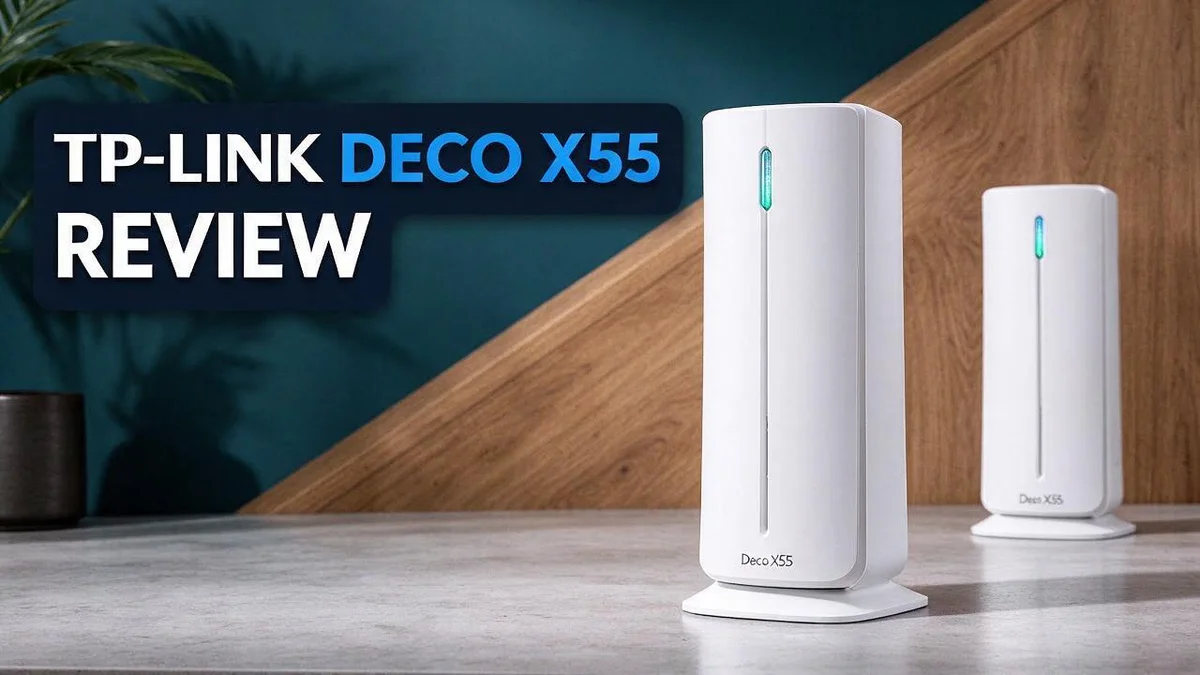
TP-Link Deco X55 Review: Wi-Fi 6 Mesh Coverage and Setup
Is your home Wi-Fi struggling to reach every room? Many people face dead spots in the bedroom or backyard. Thick walls and crowded networks make the problem worse.
The TP-Link Deco X55 aims to fix that problem. This mesh system uses Wi-Fi 6 and comes as a 3-pack. It replaces your traditional router and spreads a strong connection across large homes and busy networks. Setup stays simple, so you can get online fast.
In this review, you will learn where the Deco X55 shines and where it falls short. We also compare it with popular rivals so you can decide if it fits your needs.
In a Nutshell
- Mesh system in one box: The Deco X55 comes as a three pack. Each unit spreads your signal, so one network covers the whole home.
- Wi-Fi 6 speeds: This model uses Wi-Fi 6 with AX3000 speeds. Many users say the connection stays steady in every room.
- Easy start: Setup takes little time. You follow simple steps in the app, and your network works soon after.
- Handles many gadgets: Phones, laptops, smart speakers, and cameras can join the same network at once.
- Performance leader: The TP-Link Archer AX3200 wins on raw performance. Choose it if speed matters more than mesh coverage.
- Wi-Fi 7 gap: The newer Deco BE85 offers Wi-Fi 7. The X55 does not, so future-minded buyers may prefer the BE85.
- Other rivals: Netgear Orbi and Amazon eero Pro also compete in this space.
Whole-Home Coverage and Dead Zones


Last update on 2026-11-24 / Affiliate links / Images from Amazon Product Advertising API Some of the links on this website are affiliate links, which means that at no additional cost to you, I earn a commission if you click through and make a purchase. I only recommend products and services that I believe will add value to my readers. Thank you for your support!
Dead spots often show up in the far corners of a house. A bedroom at the end of a hallway or a patio out back can struggle to hold a signal. Walls, floors, and metal appliances all weaken the signal as it travels.
The Deco X55 handles this by placing units around the home. Each unit repeats the signal, so the connection stays strong from room to room. Think of the units as relay stations that pass data along.
Owners often report steady coverage after setup. Many say the whole house feels connected, even with several floors.
Where you place each unit matters a lot. Put one node near the main modem to start. Then place the second node halfway between the modem and the weak spot. Avoid tucking units inside cabinets or behind the TV. Open spaces help the signal move freely.
Test each room with a phone before you settle on a layout. Walk to the spot that gives you trouble and check the signal bars. Then move the node a few feet and test again. This simple trick saves frustration later.
Backyard coverage deserves special attention. Outdoor areas often sit far from the house’s main unit. Place a node near a window facing the yard. This gives the patio or garden a clearer path.
Large homes with multiple floors need extra thought. A signal often travels up stairs more easily than through thick floors. Place one unit on each level when possible. This keeps the upstairs bedrooms connected without extra effort.
Keep an eye on speed drops too. Some rooms may still feel slower even with full bars. Distance and interference both play a role. Moving a unit closer to the device often fixes the issue.
A little planning goes a long way. Your home will feel connected from the front door to the back fence.
Setup and App Experience
The Deco app handles nearly every step of setup. You download it on your phone and create a TP-Link ID. The app then guides you through the rest.
After you sign in, the app detects the first unit and walks you through the connection. Each prompt uses plain language, so you do not need technical skills.
The app runs on both iPhone and Android devices. Many people finish the first step in just a few minutes.
Once the first unit runs, you add the other units one at a time. The app checks signal strength and tells you if a spot looks weak. This feedback saves you from guessing.
Your home network shows up as a clear dashboard. You see which devices are online and how much data each one uses. Tapping a device lets you rename it, which makes the list easier to read.
Parental controls live in the same app. You can create a profile for each child, set bedtime schedules, and pause internet access during homework time. This tool works well for busy families who want clear rules.
The app also updates firmware in the background. You can turn on automatic updates so your network stays protected without extra work.
Guest access is another handy tool. You can create a separate guest network with its own password, which keeps visitors off your main devices.
The app even makes a QR code so guests can join with one scan.
Sharing the Wi-Fi password is simple. Just open the network settings, tap share, and let the other person scan the code. No typing needed.
Overall, the app makes the Deco X55 easy to manage. Setup feels quick, and daily tasks stay in one place. Spend a few minutes exploring the menus, and you will feel comfortable within a day.
Speed and Wi-Fi 6 Performance
Speed shapes how the Deco X55 feels every day. A fast network should keep videos sharp, games responsive, and calls clear.
Wi-Fi 6 works smarter than older wireless standards. It uses a method called OFDMA that splits each channel into smaller slices. Several devices can then send and receive data at the same time.
Lab numbers and home numbers often differ. Walls, furniture, and distance all reduce the signal. A speed test near the first unit will look better than one in a distant bedroom.
Each unit in the mesh also relays data for the others. This link between units is called the backhaul. When that link weakens, speed can drop in rooms far from the main unit.
Wired backhaul can help. An Ethernet cable between two units creates a direct link that avoids interference from walls. Speeds often stay steadier, especially for large downloads and video calls.
Run a quick speed check in each room you use most. Use your phone and a speed test app. Write down the results so you can compare rooms and move a unit if needed.
The Archer AX3200 may suit people who chase the highest numbers. Its peak results lead the group in this comparison. The Deco X55 focuses more on steady coverage across the whole house.
Most daily tasks need less speed than people expect. Web browsing, music, and HD streaming run well on a steady connection. Heavy file transfers between distant rooms may show the limits first.
Pick the layout that fits your habits. Think about where you stream, work, and game. Then place units to protect speed in those spots. Good speed starts with that plan. Test again after any change.
Latency also matters for online games. Low ping feels faster than high download numbers. Test ping in your gaming room instead of the living room. Wi-Fi 6 helps here because it reduces waiting time on busy networks.
Top 3 Alternatives
Eero 6

Last update on 2026-11-24 / Affiliate links / Images from Amazon Product Advertising API Some of the links on this website are affiliate links, which means that at no additional cost to you, I earn a commission if you click through and make a purchase. I only recommend products and services that I believe will add value to my readers. Thank you for your support!
Eero 6 offers a simple mesh system for homes that need easy setup. You plug in each unit and follow the steps in the app.
It supports WiFi 6 speeds for smooth streaming and video calls. Most small to medium homes get full coverage with just a few units.
Asus ZenWiFi XT8

Last update on 2026-11-24 / Affiliate links / Images from Amazon Product Advertising API Some of the links on this website are affiliate links, which means that at no additional cost to you, I earn a commission if you click through and make a purchase. I only recommend products and services that I believe will add value to my readers. Thank you for your support!
Asus ZenWiFi XT8 suits larger homes that need strong performance. Each unit can reach far corners of your house.
The system uses dual band WiFi 6 and includes Ethernet ports for wired devices. Gamers often choose it for steady connections and lower lag. It also includes built-in security features to protect your network.
Google Nest Wifi Pro

Last update on 2026-11-27 / Affiliate links / Images from Amazon Product Advertising API Some of the links on this website are affiliate links, which means that at no additional cost to you, I earn a commission if you click through and make a purchase. I only recommend products and services that I believe will add value to my readers. Thank you for your support!
Google Nest Wifi Pro focuses on clean design and easy use. The units blend well into modern living rooms.
You manage the network through the Google Home app. The system supports WiFi 6E, which adds a faster 6 GHz band for busy networks. Smart home control feels simple with Google Assistant.
Security and Parental Controls
Your home network holds a lot of personal data. Phones, laptops, and smart TVs all connect to it every day. Strong protection matters just as much as good coverage.
Start with a strong login password. Use a unique password for your account, and never reuse it elsewhere. Turn on any extra login protection the app offers. Good habits keep intruders out.
Think about who uses your network. Kids, guests, and visiting relatives all connect to the same signal. Each group needs different rules.
Parental controls help families set healthy limits. You can decide when devices go online and what content kids can reach. Set these rules once, then adjust them as needed.
Set bedtime limits for children’s devices. Many families pause internet access overnight so kids sleep well. Check the app for the exact schedule options your version offers.
Filtering content adds another layer. Block sites that do not suit young users. Review the list every few months as your children grow.
Filters work best when you talk with your kids. Explain why some sites are blocked. Open conversations build trust and reduce workarounds.
Guest access can keep visitors away from your main devices. Visitors can browse without easy access to your personal files. This separation lowers risk for the devices you use most.
Smart home gadgets need extra care. Cameras, plugs, and speakers often ship with weak default settings. Place them on a guest network when possible, and change default passwords right away.
Keep the Deco X55 current. Updates patch known weaknesses, and the app handles most of this in the background. Still, check the app now and then to confirm the newest version is installed.
Finally, review your device list once a month. Look for any unfamiliar name and remove old devices you no longer use. This keeps your network clean and safe. Security works best when it becomes a simple habit.
Best Home Sizes and Network Loads
Home size comes first. The Deco X55 suits large homes and busy networks. Its three pack setup covers multi floor houses where one router struggles.
A smaller flat may not need all three units. Thick walls and far corners still reduce signal, though. Stairs and concrete floors can also weaken signals between levels.
Count your floors. Most families place one unit on each main level. This spacing keeps the signal strong from the basement to the top floor.
Count your devices too. Phones, tablets, laptops, consoles, and cameras all share the same bandwidth. Many homes now reach dozens of connected gadgets.
Network load changes by hour. Evenings bring streaming, gaming, and video calls at once. Mornings often stay quiet. Plan for the busiest hour, not the average one.
Heavy users need more headroom. A household with several 4K streams and online games will push any mesh hard. Video calls need steady upload speeds, so the load adds up quickly. The X55 handles this mix well.
Users with very demanding needs may compare the Deco BE85. It uses a newer standard and has more capacity for future growth.
Match the system to your layout. Brick, concrete, and metal walls block signals more than drywall does. Open plan homes need fewer units than split level homes with many corners.
Very large estates may also look at the Netgear Orbi or Amazon Eero Pro. Each option suits a different floor plan and daily routine.
Plan for growth. Smart speakers, doorbells, and plugs keep joining home networks. A bigger family often means a bigger load. Leave room for them now, because spare capacity prevents slow days later.
Bottom line: the Deco X55 fits families in larger homes with many devices. Measure your space and count your gadgets first. Then pick the setup that matches your daily use. Think about future needs before you commit.
Pros and Cons
Pros
– Easy setup helps beginners get online fast.
– Consistent coverage reduces dead zones across the home.
– Users often praise the coverage they get from Wi-Fi 6.
– One system can replace your old router completely.
– The mesh keeps a steady signal on every floor.
Cons
– It lacks Wi-Fi 7, so newer devices may not get the latest features.
– The Deco BE85 offers newer technology within the same brand range.
– It comes only as a three pack, so you cannot start with one unit.
– Rivals like the Netgear Orbi offer other options worth comparing.
Who Should Buy It
If you want one simple network for your whole home, this system deserves a close look. It suits people who are tired of chasing weak signals from room to room.
Remote workers often benefit most. A home office at the far end of the house can keep a steady link for calls, files, and cloud tools.
Home businesses with a few staff can also gain from steady coverage. Shared printers, cloud backups, and client calls all need a reliable connection.
Students in shared houses may like it too. A stable link helps with online classes, research, and video lessons.
Renters who move often may appreciate the setup. The units pack up quickly and can go into a new place without much fuss.
Households with a fast internet plan get the most from it. A mesh system spreads the signal, but it cannot speed up a slow connection from your provider.
Some buyers only need a small boost in one corner. A simpler fix may suit them better than a full mesh setup.
Older relatives can also use this system with ease. The app handles daily checks, so they rarely need help from younger family members.
Gamers chasing the lowest lag may test a wired connection first. Wireless links can add small delays, so a cable often helps most.
Think about your daily habits before you decide. Ask which rooms need the strongest signal and how fast your internet plan runs.
Clear answers lead to a smart choice. Match the system to your home, your people, and your daily routine, and you will feel confident about your decision.
Final Verdict
The Deco X55 works best as a dependable everyday system. It suits people who want fewer complaints and less guesswork.
Think of it as a steady workhorse rather than a race car. For most homes, reliable coverage matters more than raw speed.
If you want the fastest possible results, look at other models first. The Archer AX3200 leads in performance, so it may suit power users better.
New buyers often ask whether they should wait for Wi-Fi 7. For many households, Wi-Fi 6 still handles daily tasks with ease.
Future needs deserve a quick check. Ask whether your devices will change in the next few years. A system you keep for five years should match that plan.
Before you commit, walk through your home with a phone. Note where the signal drops. This simple test shows whether three units will cover your space.
Also check the return policy. Good retailers let you test the system in your own home. This gives you time to confirm the coverage.
Mesh systems work best with smart placement. Place each unit in an open spot, not inside a closet. Central locations usually perform better than corners.
The setup app also helps with daily control. You can pause devices and check the network from your phone. These tools help busy families manage everyday use.
Keep expectations realistic for very large properties. Thick walls and long distances still reduce signal strength. Extra units can help in tough spots.
Overall, the X55 earns a strong recommendation for large or busy homes. It delivers consistent coverage and a simple setup. It may not be the final word on speed, but it does its core job well.
Your choice should come down to your home. Match the layout, the people, and the daily routine. When those fit, this system can serve you well for years.
Frequently Asked Questions
Is the Deco X55 easy to set up?
Yes, the setup process feels simple. The app guides you through each step, so you can finish in one sitting. Place the main unit first, then add the other units one by one.
Should I pick the Archer AX3200 instead?
Choose the Archer AX3200 if raw speed matters most to you. It leads in performance. The Deco X55 fits better when you want steady coverage across rooms, not the highest possible numbers.
Will it work with my current modem?
In most homes, the Deco X55 connects behind your existing modem. Check your internet provider first to confirm which modem type you use. Then you can build your mesh network without buying new internet service.
Can I use one unit in a small home?
The Deco X55 comes only as a three pack, so you cannot start with a single unit. A small home may not need all three. In that case, a smaller Deco model or a single router may suit you better.

Hello, i’m Ivoria i am the face behind Tech Tracker Blog. I am passionate about my work and love to explore gadgets and share about my experience.