Why Is My Smart Window Tint Not Responding To App Controls?
You tapped the app button. Nothing happened. You tapped it again. Still nothing. Your smart window tint sits frozen in one state, and you are left staring at your phone screen wondering what went wrong.
This is one of the most frustrating experiences for smart glass owners, and it happens more often than you might think.
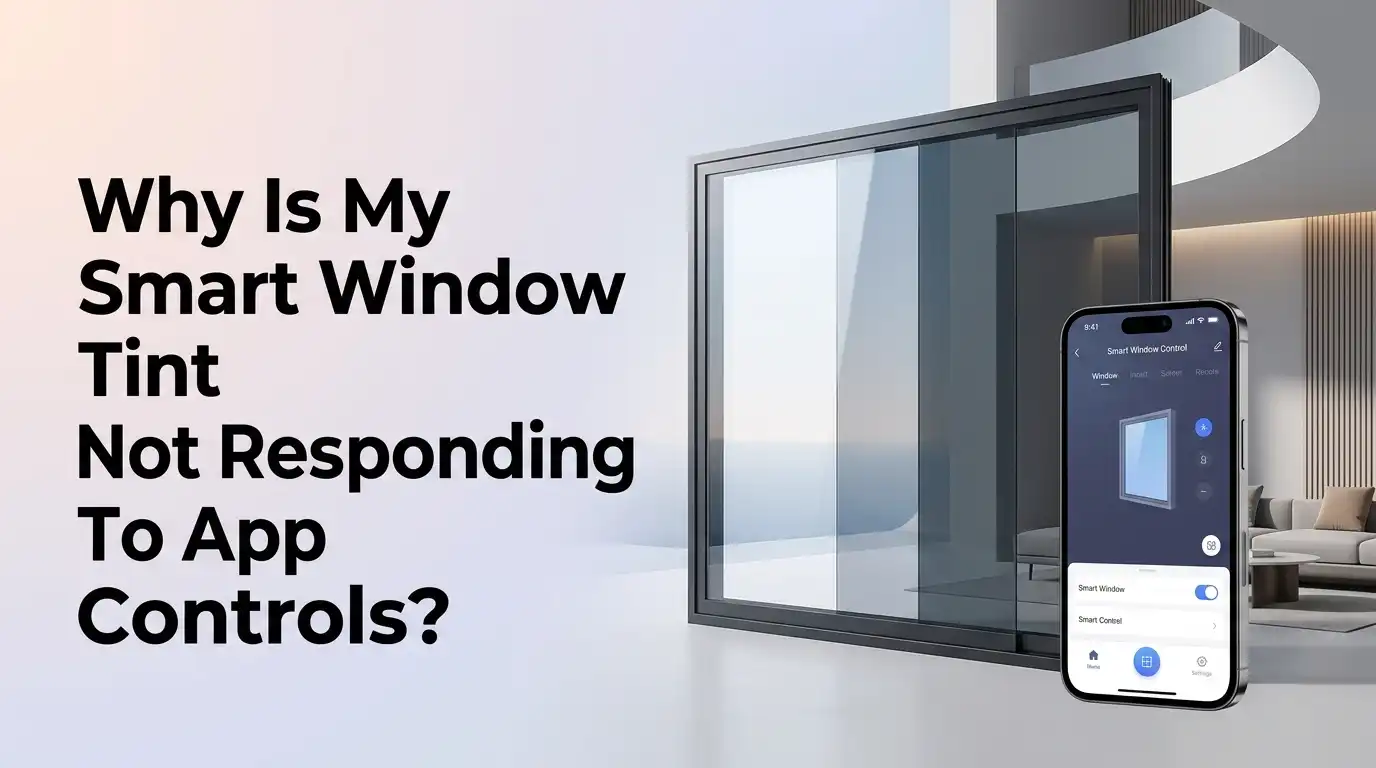
Smart window tint relies on a chain of connections between your phone, the app, a controller, a power supply, and the PDLC film itself. A single weak link in that chain can make the entire system unresponsive.
In a Nutshell
- The app connection depends on multiple components working together. Your phone sends a signal through Bluetooth or Wi Fi to a controller, which then adjusts the voltage going to your PDLC film. A failure at any point in this chain stops the app from controlling your tint.
- Power supply issues are the most common culprit. Before you blame the app, check whether your smart tint responds to a physical switch or remote. If it does not respond to any control method, the problem is electrical, not software related. A loose wire, a blown fuse, or a faulty transformer can all make the system appear unresponsive to app commands.
- Bluetooth and Wi Fi interference cause many app failures. Smart tint controllers use wireless protocols that are sensitive to distance, obstacles, and network congestion. If you moved your router, added new devices to your network, or if the controller is behind a thick wall, the connection can drop.
- Outdated firmware and app versions create compatibility gaps. Manufacturers regularly release updates that fix bugs and improve connectivity. Running an old version of the app or the controller firmware is a frequent source of problems that a simple update can resolve.
- A controller reset fixes a surprising number of issues. Much like restarting a computer, resetting your smart tint controller clears temporary glitches that accumulate over time. Most controllers have a specific reset procedure that takes less than five minutes.
- Environmental factors like heat and moisture can silently damage connections. Excessive humidity can corrode wiring terminals, and extreme heat can cause voltage instability. These physical problems make the system unresponsive even when the app itself is working perfectly.
Check If the Problem Is the App or the Hardware
The first step is to figure out where the failure is happening. Your smart tint system has two sides: the software side (app and wireless connection) and the hardware side (controller, power supply, wiring, and film).
Try operating your tint using a physical wall switch or a remote control if your system has one. If the tint responds to the switch but not the app, you know the film and power supply are fine. The problem lives in the wireless connection between your phone and the controller.
If the tint does not respond to any control method, the issue is hardware related. Skip ahead to the power supply and wiring sections of this guide. This simple test saves you from wasting time troubleshooting the wrong thing.
Pros: This test takes 30 seconds and immediately narrows down the problem area.
Cons: Some systems only have app control and lack a physical switch, which limits this diagnostic step.
Restart Your App and Phone
This sounds basic, but it resolves the issue for a large number of users. Mobile apps can freeze, lose their background connection, or encounter memory errors that stop them from sending commands to the controller.
Close the smart tint app completely. On most phones, this means swiping it away from the recent apps list, not just pressing the home button. Then restart your phone. After the reboot, open the app again and try to control your tint.
Also check that the app has the necessary permissions enabled. Location services, Bluetooth access, and local network permissions are often required for smart home apps to communicate with controllers. A recent phone update may have reset these permissions without notifying you.
Pros: This fix costs nothing, takes two minutes, and solves a surprising percentage of connectivity failures.
Cons: It only addresses temporary software glitches and will not fix deeper hardware or network problems.
Verify Your Bluetooth or Wi Fi Connection
Smart tint controllers typically connect to your phone through Bluetooth, Wi Fi, or a combination of both. Each protocol has its own set of potential failure points.
For Bluetooth, make sure you are within range. Most Bluetooth controllers have an effective range of about 30 feet, and walls, metal surfaces, and other electronics can reduce that range significantly. Open your phone’s Bluetooth settings and check if the controller appears in the list of paired devices. If it shows as disconnected or does not appear at all, try removing the device and pairing it again from scratch.
For Wi Fi connected controllers, verify that your phone and the controller are on the same network. Many routers broadcast both 2.4 GHz and 5 GHz bands. If your phone is on the 5 GHz band and the controller only supports 2.4 GHz, they cannot communicate. Switch your phone to the 2.4 GHz network and try again.
Pros: Addressing connectivity is straightforward and fixes a large portion of app control failures.
Cons: Wi Fi troubleshooting can become complicated if you have mesh routers or multiple access points in your home.
Inspect the Power Supply and Transformer
A power supply problem is the single most common reason smart window tint stops responding. The PDLC film requires a specific voltage, usually 48V AC or 65V AC depending on the manufacturer, to switch between clear and frosted states.
Use a voltage meter to check the output from your transformer. If the reading is zero or significantly below the rated voltage, the transformer may have failed or a fuse may have blown. Check for a blown fuse inside the power supply unit and replace it with one that matches the exact same size and specifications.
Also inspect the power input. Make sure the transformer is plugged in and receiving electricity. A tripped circuit breaker or a GFCI outlet that has tripped can silently cut power to your entire smart tint system.
Pros: Identifying a power supply failure is definitive and the fix is usually inexpensive.
Cons: Working with electrical components requires caution. If you are not comfortable using a voltage meter, call an electrician.
Examine the Wiring and Bus Bar Connections
Even when the power supply is healthy, loose or damaged wiring between the controller and the film can prevent the system from responding. The copper bus bars on the film are particularly vulnerable connection points.
Check that all wire connections are tight and free of corrosion. Pay special attention to where the wires attach to the bus bars on the film itself. These connections can loosen over time due to temperature changes that cause materials to expand and contract.
If the wiring runs along an area exposed to moisture, look for green oxidation on the copper terminals. Corroded connections create resistance that reduces voltage delivery to the film. Clean corroded terminals with a contact cleaner and re secure the connections.
Pros: A visual inspection often reveals the problem without any special tools.
Cons: Bus bar connections are sometimes hidden behind trim or frames, making access difficult without partial disassembly.
Update the App and Controller Firmware
Manufacturers push software updates to fix bugs, patch security issues, and improve device compatibility. Running outdated software is one of the easiest problems to overlook and one of the simplest to fix.
Open your phone’s app store and check for updates to your smart tint control app. Install any available updates. Next, check whether your controller has a firmware update available. Many apps display the current firmware version and notify you of available updates within the settings menu.
Some controllers require a manual firmware update process. This usually involves downloading a file from the manufacturer’s website and transferring it to the controller via USB or through the app. Follow the manufacturer’s instructions carefully and do not disconnect power during a firmware update, as this can brick the controller.
Pros: Updates are free and can fix known bugs that the manufacturer has already identified and resolved.
Cons: Firmware updates carry a small risk of failure if power is interrupted during the process.
Reset the Smart Tint Controller
If basic troubleshooting has not worked, a full controller reset often clears persistent glitches. This process restores the controller to its factory default settings and forces it to re establish all connections.
The reset process varies by manufacturer. For many popular controllers, the steps are: disconnect the power input completely, then reconnect it while simultaneously pressing specific buttons on the controller or remote. You should hear an audible click confirming the reset was successful.
After the reset, you will need to re pair your app with the controller. Open the app, go to the device setup section, and follow the pairing instructions as if you were setting up the system for the first time. This fresh pairing eliminates any corrupted connection data that may have been stored.
Pros: A factory reset clears accumulated software errors and gives you a clean starting point.
Cons: You lose all custom settings, schedules, and scene configurations, which you will need to set up again.
Check for Smart Home Integration Conflicts
If your smart tint is connected to a broader smart home system like Google Home, Amazon Alexa, Apple HomeKit, or a Lutron system, the integration layer can introduce additional failure points.
Sometimes the smart home platform sends conflicting commands or fails to pass commands to the tint controller. Try controlling the tint directly from the manufacturer’s own app rather than through the smart home platform. If the manufacturer’s app works but the smart home platform does not, the problem is in the integration.
Remove the smart tint device from the smart home platform and re add it. Also verify that any automation routines or schedules are not sending commands that override your manual inputs.
Pros: Isolating the integration layer helps you pinpoint whether the issue is with the tint system or the smart home platform.
Cons: Re integrating devices can be time consuming, especially if you have complex automation routines configured.
Rule Out PDLC Film Damage
In some cases, the app and controller work perfectly, but the film itself has degraded and no longer responds correctly. PDLC film can degrade due to prolonged UV exposure, moisture infiltration, or voltage stress over time.
Signs of film damage include uneven frosting, permanent hazy patches, yellowing, or sections that remain clear when the rest of the film switches. Dead spots in the frosted pattern indicate that the conductive layer or the liquid crystal material has been compromised.
If the film shows these symptoms, no amount of app troubleshooting will help. The film needs physical repair or replacement. Professional grade PDLC film with UV stabilization typically lasts 8 to 10 years, while lower quality film can degrade in as little as 1 to 3 years.
Pros: Identifying film damage early prevents you from spending time and money troubleshooting components that are actually working.
Cons: Film replacement is the most expensive fix and usually requires professional installation.
Address Environmental Factors
Your smart tint system operates in a physical environment that can affect its performance. Heat, humidity, and even nearby electronic devices can all interfere with system function.
Excessive humidity can cause moisture to seep into the edges of the film, especially if the edges were not properly sealed with silicone during installation. This moisture corrodes internal connections and creates cloudy patches. Extreme heat can cause voltage fluctuations that confuse the controller.
If your smart tint is installed in a bathroom, kitchen, or any area with high moisture levels, check the edge sealing. Properly sealed edges prevent moisture from reaching the conductive layers inside the film. In high temperature areas, make sure the controller and transformer are installed in a ventilated location away from direct sunlight.
Pros: Environmental fixes are preventive and protect your system from recurring issues.
Cons: Resealing film edges or relocating hardware may require professional help.
Know When To Call a Professional
Some problems go beyond what you can safely and effectively fix on your own. If you have worked through all the steps above and your smart tint still does not respond, it is time to bring in a certified technician.
Call a professional if you notice unusual heat or burning smells coming from the transformer. Contact an expert if multiple panels on the same system fail simultaneously, as this points to a central controller or power distribution problem. Also seek help if the film flickers rapidly, which may indicate a serious electrical imbalance that could damage the system further.
A qualified installer can perform detailed voltage testing across every connection point, diagnose controller board failures, and determine whether the film, wiring, or controller needs replacement.
Pros: Professional diagnosis prevents further damage and ensures safety with electrical components.
Cons: Service calls cost money, and scheduling can take time depending on your location and the availability of certified installers.
Prevent Future App Control Failures
Once your system is working again, take a few steps to prevent the same problem from happening again. Regular maintenance goes a long way with smart tint systems.
Keep your app and controller firmware updated at all times. Set a reminder to check for updates once a month. Ensure your Wi Fi network is stable and that the controller has a strong, consistent signal. Avoid placing the controller in areas with excessive heat or moisture.
Schedule an annual inspection of wiring connections, bus bars, and edge sealing. Tighten any loose connections and reseal any edges that show signs of moisture intrusion. These small maintenance steps can extend the life of your smart tint system by several years and keep the app control responsive and reliable.
Pros: Preventive maintenance is inexpensive and drastically reduces the chance of future failures.
Cons: It requires discipline and a small time commitment on a regular basis.
Frequently Asked Questions
Why does my smart tint app say “device not found”?
This message usually means the Bluetooth or Wi Fi connection between your phone and the controller has been lost. Make sure you are within range, that your phone’s Bluetooth is turned on, and that both devices are on the same Wi Fi network. Try removing the device from the app and pairing it again. A controller reset often resolves this issue as well.
Can a power outage cause my smart tint to stop responding to the app?
Yes. A power outage can reset the controller, disrupt Wi Fi connections, and cause the film to revert to its default state (usually frosted/opaque). After power is restored, restart the controller, check your Wi Fi connection, and reopen the app. You may need to re pair the controller if it lost its stored connection data during the outage.
How do I know if my smart tint film is damaged or if it is a controller issue?
Bypass the controller and connect the film directly to its rated power supply using a manual switch. If the film switches properly, the controller is the problem. If the film does not switch, shows uneven frosting, or has visible haze or yellowing, the film itself may be damaged and need replacement.
Does Wi Fi frequency matter for smart tint controllers?
Yes. Most smart tint controllers operate on the 2.4 GHz Wi Fi band. If your phone is connected to a 5 GHz band, it may not communicate with the controller. Check your router settings and make sure both your phone and the controller are on the same 2.4 GHz network for a reliable connection.
How often should I update my smart tint app and firmware?
Check for app updates at least once a month through your phone’s app store. For controller firmware, check the manufacturer’s website or the app settings menu quarterly. Keeping both updated ensures you have the latest bug fixes, security patches, and compatibility improvements.

Hello, i’m Ivoria i am the face behind Tech Tracker Blog. I am passionate about my work and love to explore gadgets and share about my experience.