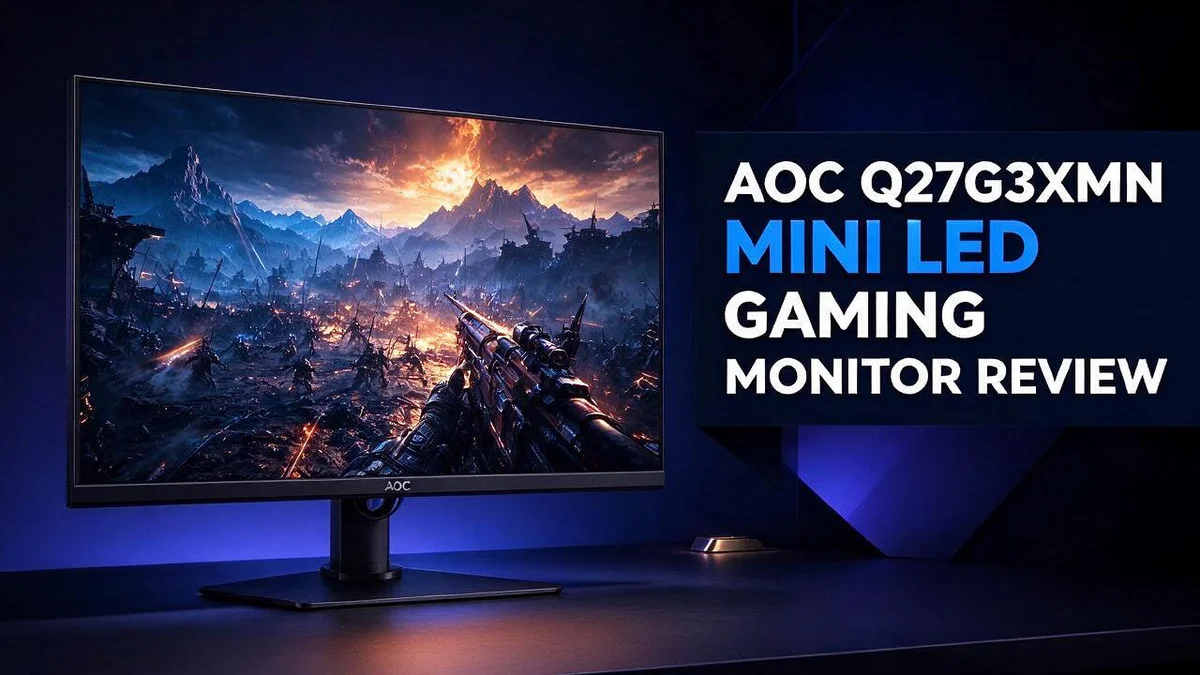
AOC Q27G3XMN Mini LED Gaming Monitor Review: Worth Buying?
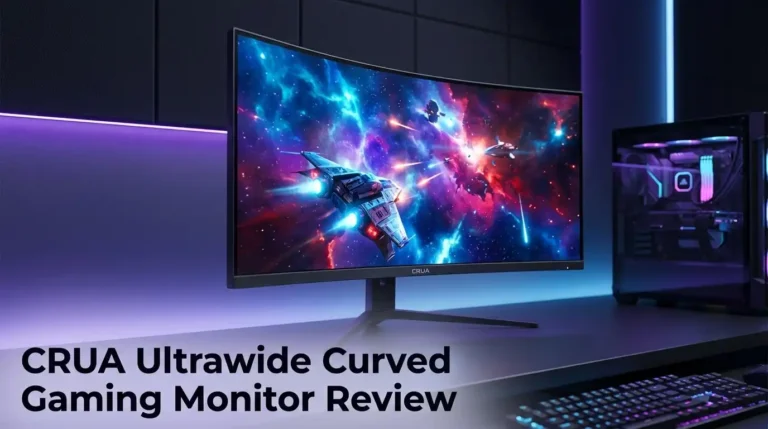
Are you looking for a monitor that makes your games look sharp and bright? The AOC Q27G3XMN could be a strong pick. It offers a 27 inch screen that many players use for 1440p gaming.
What sets this monitor apart is its Mini LED backlight. It uses 336 zones with full array local dimming. This makes dark scenes look deeper.
Gamers also get variable refresh rate support up to 180 FPS. That keeps motion smooth and reduces screen tearing.
Still, there is one thing to watch. Some users raise concerns about black smear on the VA panel during fast competitive matches. Nobody has tested this in full yet, so keep it in mind.
In this review, we break down the design, picture quality, and gaming performance. We also compare it with rivals like the Xiaomi G Pro 27i.
In a Nutshell
- Best for mixed use: Gamers who want rich contrast and bright highlights will feel at home here. It also works well for movies and story driven games.
- Sharp image quality: The 27 inch screen offers decent pixel density. Text and game details look clean at a normal desk distance.
- HDR strength: High peak brightness helps highlights pop in dark scenes. Night levels and bright explosions stand out more than on many standard monitors.
- Shooter caution: Some users report black smear on the VA panel. Competitive players should check this closely before they commit to the screen.
- Stronger rival: The Xiaomi G Pro 27i may suit fast shooters better. Reviewers say it offers faster response and cleaner motion.
- Other AOC options: Reddit users often recommend other AOC Mini LED models. They praise these for HDR and gaming performance. Compare each option side by side to find your best match.
Mini LED Backlight and Local Dimming


Last update on 2026-10-27 / Affiliate links / Images from Amazon Product Advertising API Some of the links on this website are affiliate links, which means that at no additional cost to you, I earn a commission if you click through and make a purchase. I only recommend products and services that I believe will add value to my readers. Thank you for your support!
The Mini LED backlight is the main reason this monitor stands out. Many screens use a few LEDs along the edges. This model uses a full array of tiny LEDs placed directly behind the panel.
This setup supports full array local dimming, often shortened to FALD. Each zone of light can switch on or off on its own. Dark areas stay deep black while bright areas stay vivid.
Think of it like a grid of lamps. Each lamp adds light only where the scene needs it. This approach keeps the image balanced without washing out dark areas.
The panel uses 336 zones of backlight control. More zones give finer control over light. A bright star on a dark sky looks sharp instead of glowing across the whole area.
Edge lit screens often show a grey haze around bright objects. Full array dimming can help limit that haze. Subtitles, HUD icons, and game menus look cleaner as a result.
The biggest gains show up in HDR content. High peak brightness lets highlights pop while shadows keep their detail. Night maps and dark caves feel more lively.
Zone count alone does not decide the final picture. Panel type, tuning, and response behavior also shape how the image looks in motion.
Some users raise a concern about black smear on the VA panel. They say it can appear in fast dark scenes. This claim has not been tested in available sources, so check it yourself.
Competitive shooter players should watch this closely. MonitorGarage says the Xiaomi G Pro 27i handles 180 Hz with faster response and cleaner motion. That model may suit fast shooters better.
Reddit users also point to other AOC Mini LED models. They often praise those for HDR and gaming. Those options may fit buyers who want the same backlight style.
In short, the Mini LED backlight gives strong contrast and bright highlights. It suits gamers who enjoy both movies and games. Test the shooter performance before you commit.
Gaming Performance and Motion Handling
Motion handling decides how smooth your games feel. Fast camera pans and quick turns show whether a screen keeps up with your hands. Clean motion keeps enemies easy to track, even during busy firefights.
Frame rate matters just as much as the panel. Your graphics card needs to push frames at a steady pace. When the frame rate dips, the picture can stutter, even on a strong screen. Adaptive sync helps smooth out these dips by matching the monitor refresh to the game output.
Overdrive settings deserve a look too. Overdrive speeds up pixel changes, which can reduce blur. However, pushing it too hard may create bright or dark trails behind moving objects. Most players find a middle setting works best. Test it in a game you know well.
Input lag is another key point. It describes the delay between your mouse click and the action on screen. Many players never check this, yet it changes how responsive every movement feels. Game mode settings often reduce that delay. Turn off extra image processing so the picture responds faster.
Racing and flight games show different strengths. Slow, sweeping motion often looks clean on a VA panel. Fast shooter movement, by contrast, can reveal trailing artifacts. Try both game types before you decide.
Dark scenes need careful handling as well. Strong local dimming can cause a glow around bright icons or crosshairs in dark maps. Lower the local dimming intensity if you notice this halo effect. Some players prefer a softer look over maximum contrast.
Console players should also check the signal path. Use a cable that supports high bandwidth, and confirm the input handles your target frame rate. A slow connection can limit performance, even when the screen is capable.
Finally, play several sessions before you judge. Your eyes adapt over time. Keep notes on blur, stutter, and glow. Those notes will guide your settings and show whether this screen fits your style.
Design, Build, and Connectivity
Your desk setup starts with the stand. A sturdy base keeps the screen steady during fast gaming moments. Look for height, tilt, and swivel options, because these controls help you find a comfortable viewing angle.
Eye comfort matters over long sessions. Set the top of the screen near eye level. Place the monitor about one arm length away from your chair. This posture reduces neck strain and keeps your focus on the action.
Many players prefer a wall mount or monitor arm. Check whether the back of the screen has a VESA mount pattern before you buy a bracket. This step saves time and avoids fit problems later.
Slim bezels give the screen a clean look. They also work well for dual monitor setups, where the edges of each screen sit close together.
Ports decide how you connect your devices. Most gaming monitors offer HDMI and DisplayPort inputs. Each port supports different refresh rate and resolution combinations, so check the port list before you plug in your gear.
Consoles usually connect through HDMI. PC players often choose DisplayPort for smooth high refresh output. If the model includes a USB hub, you can connect a keyboard, mouse, or controller without reaching behind the desk.
Cable routing also shapes the final look. Clip cables along the stand to keep your desk tidy. A neat setup makes it easier to move the monitor when you clean or rearrange your room.
Build quality should feel solid. Press lightly on the panel and watch for wobble. A firm frame usually means fewer vibrations during play, which helps your aim stay steady.
Matte coatings can reduce glare from windows and room lamps. Glossy finishes can look sharp, but they often reflect more light. Pick the finish that suits your room.
Product details like stand weight, port count, and included cables can change by region. Check the official listing and recent user reviews before you decide. A careful look at these details helps you choose the right setup, and good design makes every session more enjoyable.
Top 3 Alternatives
Samsung Odyssey G7

Last update on 2026-10-27 / Affiliate links / Images from Amazon Product Advertising API Some of the links on this website are affiliate links, which means that at no additional cost to you, I earn a commission if you click through and make a purchase. I only recommend products and services that I believe will add value to my readers. Thank you for your support!
The Samsung Odyssey G7 is a curved gaming monitor that many players enjoy.
It offers a fast refresh rate and quick response time. Gamers who want smooth motion will appreciate its strong frame rate support.
The curve wraps the image around your field of view. This immersive feel helps in racing games and shooters.
ASUS ROG Swift PG27AQN

Last update on 2026-10-28 / Affiliate links / Images from Amazon Product Advertising API Some of the links on this website are affiliate links, which means that at no additional cost to you, I earn a commission if you click through and make a purchase. I only recommend products and services that I believe will add value to my readers. Thank you for your support!
The ASUS ROG Swift PG27AQN is built for competitive play.
It uses a 1440p resolution paired with a very high refresh rate. Sharp detail and fast motion make it a strong choice for esports fans.
Its display supports adaptive sync. Players who value speed often pick this model for its clean, responsive feel.
Gigabyte M27Q
The Gigabyte M27Q is a flexible option for many players.
It offers a sharp 1440p screen and a fast refresh rate. The simple design fits well on most desks.
It also works well for shared setups. Gamers can switch between games and work tasks with ease. This monitor suits people who want a versatile screen for every day.
Price and Value Analysis
Value depends on how you use the screen, not just on the spec sheet.
Start with the games you play most. A monitor earns its place when it fits your daily sessions.
Fast shooters, slow strategy fans, and console players all need different things.
Check your computer before you commit. A high refresh rate only helps when your graphics card can fill it.
Older cables can also limit the refresh rate. Check which version your cables support before you set up.
Read the warranty terms closely. A longer warranty gives you peace of mind if a panel fails early.
Ask about the return policy too. A clear return window lets you test the screen in your own room.
Consider your room lighting. Bright windows and lamps change how a screen looks, so test it at the time you play most.
Compare specs side by side. Make a short list of two or three models. Write down the refresh rate, panel type, brightness, and port count.
Independent reviews often test motion and brightness in real conditions. Marketing claims rarely show that.
Think about how long you will keep it. A screen that handles new games for years gives you more use from every session.
Upgrading often means changing more than the monitor. Your desk, mount, and PC may need updates too.
Keep in mind that software tools matter as well. Firmware updates can improve the picture and fix small issues over time.
Check the brand support page for updates and manuals. Clear help makes setup easier and faster.
Think about shared use. If several people use the screen, check how easily you can switch inputs between devices.
Trust your own test. Play your favorite game for an evening before you decide.
A quick check now can save time later. Small steps make the final choice feel easier and more certain.
In the end, the best choice is the screen you enjoy using every day.
Pros and Cons
Pros
- Mini LED backlight gives finer control over light zones.
- Full array local dimming helps separate bright and dark areas.
- High peak brightness makes HDR scenes stand out.
- The 27 inch screen is built for sharp 1440p gaming.
- Wide color gamut delivers rich, vivid colors.
Cons
- Few hands-on tests confirm the results in real use.
- The Xiaomi G Pro 27i may suit fast shooters better at 180 Hz.
- Other AOC Mini LED models may fit your needs more closely.
- Pixel density is decent, but not top tier for fine detail.
Who Should Buy It
Single player fans are a great match for this monitor. Dark caves, night skies, and moody scenes look rich on this screen. Strong contrast does most of the heavy lifting here.
Movie lovers will enjoy it too. The panel handles streaming shows and films with ease. Dark scenes keep their detail instead of turning gray.
Competitive shooters should think twice. Some users raise black smear concerns with VA panels. Those reports are not confirmed, so test the screen before you rely on it.
Remote workers can use it as a main display. It shows spreadsheets and documents with clean text. After work, the same screen handles game nights without extra setup.
Students in small rooms may like this setup. One monitor can replace a separate TV or laptop screen. It keeps desk space open for books and snacks.
People who game in dim rooms will see the best results. The screen shines when the lights stay low. Bright sunny rooms can wash out subtle shadows.
Families with shared spaces can also benefit. One screen covers game nights and movie nights. Everyone gets a good view without changing the setup.
Hobbyists who edit photos may find it handy. Quick color tweaks look natural on this panel. Serious color work may still need extra tools.
Buyers who want a fast 180 Hz screen should look elsewhere. Another model may match that need more closely. Compare your favorite games before you decide.
Your daily routine decides the right fit. This monitor works best for mixed play, movies, and work. Think about your room, your games, and your habits before you choose it.
Final Verdict
Our final verdict leans positive, with one clear condition. This monitor offers a Mini LED backlight, and that feature gives it a real edge in contrast and HDR scenes.
The image quality stands out most. Bright highlights pop from dark backgrounds. Night scenes in games look deep and layered. Vivid colors add punch to everything from science fiction worlds to nature shows.
The VA panel raises a question. Some users report black smear in fast motion. Nobody has tested that claim in a controlled setting yet. Treat it as an open question until someone confirms the effect.
Think of this screen as a strong all round choice. It handles story games, cinematic films, and everyday office tasks with ease. It does not try to win every category.
Your own needs should guide the choice. Ask yourself three quick questions. Which games fill most of your evenings? Do you watch movies in a dark room? Do you need sharp text for work? If most answers point to immersion and visual depth, this display fits well.
Look at the bigger picture. A monitor shapes your daily comfort for years. Pick the screen that matches your habits, not just the one with the boldest headline numbers.
Think about your next upgrade too. A capable 1440p panel can carry you through several years of new releases and streaming.
A quick look in a store can help. Watch fast scenes and dark scenes, then decide how the panel behaves.
Our short answer is clear. This Mini LED monitor suits players who value deep contrast and vivid HDR. Pick it with open eyes about the VA panel.
Test the monitor with your favorite titles first. Play a game you know well. Notice how dark corners and bright explosions look. Your own eyes make the final call.
Dark areas can reveal detail. Bright areas can look striking. Balance matters most for long sessions, so take regular breaks to rest your eyes.
Frequently Asked Questions
What is blooming and will I notice it?
Blooming is a soft glow that can appear around bright objects on dark backgrounds. The Mini LED zones can reduce this glow, but they cannot remove it completely. Check white subtitles or star fields on a black background to see how it looks in your room.
How can I check for black smear at home?
Open a dark scene in a game or film, then move the camera slowly. Look for gray trails behind moving objects. Users have raised this concern, but no source has tested how strong it is. Your own eyes are the best judge, so try the test before you decide.
Will variable refresh rate work with my PC?
Variable refresh rate matches the screen speed to your frame rate. It works best with a compatible graphics card and the right settings. Turn on the feature in both your graphics software and the monitor menu. Smooth motion depends on both parts working together.
Should I wait for a newer model?
Monitor technology changes quickly. Newer panels may bring faster response or better contrast. If you need a screen now, this model still offers strong HDR and deep contrast. If fast 180 Hz play matters most, compare the Xiaomi G Pro 27i first.

Hello, i’m Ivoria i am the face behind Tech Tracker Blog. I am passionate about my work and love to explore gadgets and share about my experience.