
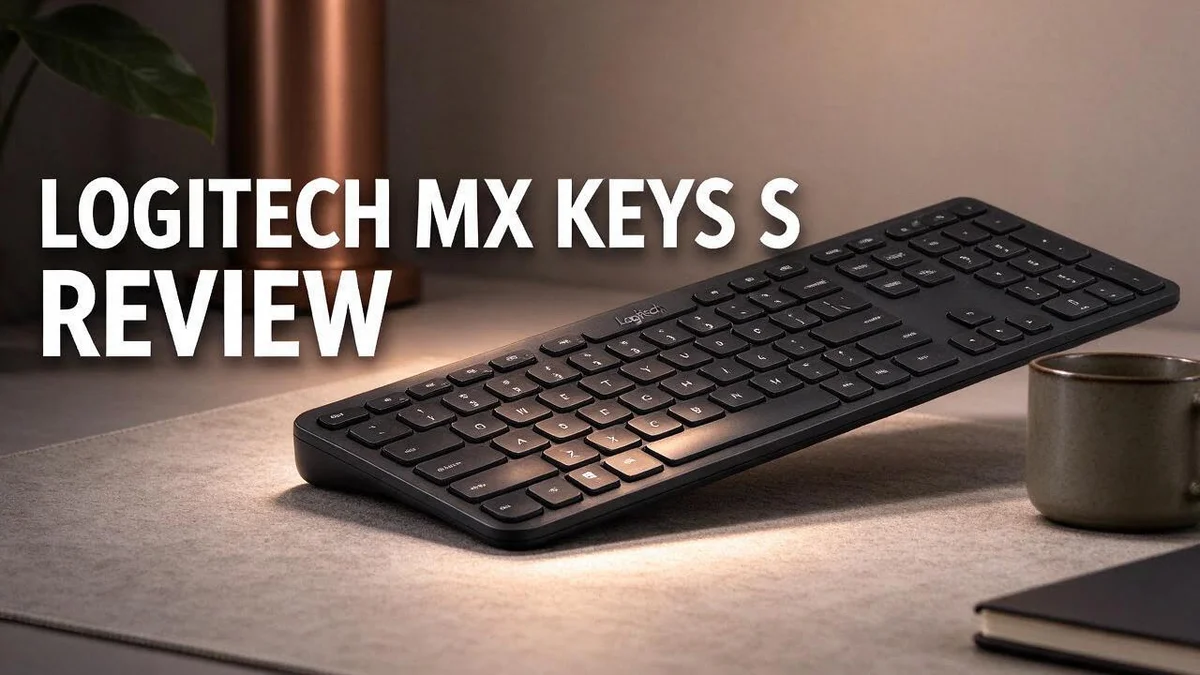
Logitech MX Keys S Review 2026: A Comprehensive Guide
Are you looking for a keyboard that feels great and works across all your devices? The Logitech MX Keys S could be the right pick. It looks sleek on any desk.
Its keys sit low and feel smooth under your fingers. The backlit keycaps glow softly, and the lights turn on automatically when your hands approach. You can also switch between three devices with ease.
Many users praise the typing feel. It feels close to a laptop keyboard, and some reviewers even rank it above Apple’s Magic Keyboard. The Logi Options+ software also makes setup simple.
Still, no keyboard is perfect. Some reviewers criticize the keycap material, and others note that it trades some performance for comfort.
In this review, we break down the design, typing feel, software, and the main pros and cons. Keep reading to see if this keyboard fits your setup.
In a Nutshell
-
Made for Mac users: AppleInsider lists the MX Keys S as a third-party keyboard for Mac, and it even rates the typing feel above Apple’s Magic Keyboard.
-
Lights up on its own: The keys use automatic LED lighting, and the shine through keycaps glow nicely in dim rooms. You never need to flip a switch.
-
Switches between three devices: You can pair a laptop, a tablet, and a phone. Then you tap one key to jump from one screen to the next.
-
Customizes with Logi Options+: The software lets you remap keys and manage your devices in one place. Many people find it easy to learn.
-
Comfort comes with trade-offs: TechGearLab notes that the keyboard makes some performance concessions for comfort. Reviewers also criticize the keycap material.
-
Other strong options exist: You can compare it with the Keychron Q1 Max, Logitech AltoKeys M96, Keychron V5 Max, and Aula F99 or F75. Each one brings a different layout and feel.
Typing Feel and Key Action

Last update on 2026-10-27 / Affiliate links / Images from Amazon Product Advertising API Some of the links on this website are affiliate links, which means that at no additional cost to you, I earn a commission if you click through and make a purchase. I only recommend products and services that I believe will add value to my readers. Thank you for your support!
Typing on the Logitech MX Keys S feels quick and light. The keys have a short travel distance, so each press ends fast. Your fingers spend less time pushing down and more time moving on.
Key spacing gives your hands a steady guide. Each key sits in a clear grid, so your fingers find the right spot without much thought. This helps during long writing sessions.
Noise is another angle to consider. Many people who type all day want a board that does not disturb others. Test the sound in person if you share a room.
Keycap texture is a point of debate. Some reviewers criticize the keycap material. Your personal preference for smooth or grippy surfaces will shape your opinion.
Getting used to it takes a few days. If you come from a deeper keyboard, your fingers may overshoot at first. Give yourself a short adjustment period before you judge the feel.
Hand fatigue depends on your posture and habits. A low profile design can help keep your wrists flatter on the desk. Still, add a wrist rest if long hours bother your hands.
Accuracy and rhythm matter for fast typists. A consistent key response helps you keep a steady pace. Fewer missed keys mean fewer corrections. Many people value that rhythm more than raw speed.
Feel varies from person to person. Try a few keystrokes on a store display if you can. Notice how your fingers respond to the force and spacing. Your own test will tell you more than any review score.
A crisp response suits fast writers. Those who want a softer cushion may prefer a different board.
Keycap Design and Build Quality
The keycaps matter more than most people think. Every keystroke touches them, so their shape and surface affect your comfort all day long.
The MX Keys S uses curved keytops. These curves help your fingertips find the center of each key.
A keyboard should stay planted while you type. Good build quality keeps it steady on your desk. Solid construction matters most during fast typing sessions.
Press the edge of each keycap gently. Check for wobble or rattling. A tight fit gives you a cleaner, more reliable feel.
Watch for flex in the middle of the board when you press hard. Less flex usually means a more solid base.
Keycaps collect dust, skin oils, and crumbs over time. Wipe them with a soft, dry cloth every few weeks. This keeps the surface smooth and the letters easy to read.
Check the gaps between the keycaps too. Even spacing looks neater and makes the board easier to clean.
Heavy typists wear keys faster than casual users. If you type for hours each day, think about how the surface will hold up after months of use.
Pay attention to how the keycaps feel after a long session. Warm, sweaty fingers can make some surfaces feel slick.
The clean, minimal look fits well in home offices and shared workspaces. It blends in with most desk setups.
Store displays make this check easy. Many shops let you touch the board before you decide.
Test the build yourself if possible. Pick up the board, press a few keys, and listen for creaks. Your own hands will tell you the most.
Multi-Device Switching and Logi Options+
Switching between devices feels simple once you set it up. You can move from one screen to the next without fumbling with cables or menus.
Think about your daily routine for a moment. A desk might hold a work laptop, a personal tablet, and a phone for messages. Each device gets its own slot, so you never need to unplug anything.
Logi Options+ adds another layer of control. You can assign shortcuts that behave differently in each app. That means your favorite commands stay familiar, even when you jump between machines.
Reconnecting takes only a moment after you press a device key. Most people find the process quick and simple. Keep your devices close and charged for the smoothest experience.
Mac and Windows users need to pay attention here. The keyboard suits Mac setups well, yet a Windows computer may need a few adjustments. Check that the modifier keys match what your system expects.
Labels can save time during busy days. Some people place small stickers near each device key. This small habit removes guesswork when you reach for the keyboard in a hurry.
Give the setup a fair test before you decide. Spend a full workday switching between your devices. Notice how often you pause, and how quickly the connection returns. Those details tell you more than any spec sheet.
Good switching turns a crowded desk into a calm workspace. You spend less time hunting for the right screen and more time doing real work.
Top 3 Alternatives
Looking for a keyboard that fits your setup? These three options offer strong typing and clean design.
Apple Magic Keyboard


Last update on 2026-10-27 / Affiliate links / Images from Amazon Product Advertising API Some of the links on this website are affiliate links, which means that at no additional cost to you, I earn a commission if you click through and make a purchase. I only recommend products and services that I believe will add value to my readers. Thank you for your support!
The Apple Magic Keyboard is a great pick for people who use Apple devices. It has a slim aluminum body and a quiet scissor switch design. You can connect it to a Mac, iPad, or iPhone with Bluetooth or a USB-C cable. Some versions include Touch ID, so you can unlock your Mac with a fingerprint.
Keychron K2
No products found.
The Keychron K2 suits people who love a mechanical feel. It uses a compact 75 percent layout, so it saves desk space. You can connect it wirelessly over Bluetooth or use a wired USB-C connection. It works with both Mac and Windows, and many users enjoy its satisfying key feel and optional backlight.
Logitech K780

Last update on 2026-10-27 / Affiliate links / Images from Amazon Product Advertising API Some of the links on this website are affiliate links, which means that at no additional cost to you, I earn a commission if you click through and make a purchase. I only recommend products and services that I believe will add value to my readers. Thank you for your support!
The Logitech K780 is built for people who switch between several devices. It can pair with up to three devices and switch between them with a single key press. It works with Windows, Mac, Chrome OS, Android, and iOS. Its curved, full-size layout feels comfortable for long work sessions, and it runs on batteries that last for a long time.
Mac Compatibility and Layout
The Logitech MX Keys S fits well on a Mac desk. It uses a US ANSI layout, which most American Mac users already know. Your hands can move without relearning the basic key map.
The keys sit in the usual spots. You find the familiar arrangement for letters, numbers, and modifier keys. Even your hand position stays familiar.
Mac shortcuts need extra attention. Keys like Command and Option do the heavy work on macOS. Check that these keys sit where your fingers expect them. Test these shortcuts in your own apps before you commit to a new board.
Apple fans often compare this board with the Magic Keyboard. Reviewers say the feel differs in a way that some people prefer. Your own test matters more than any review.
The Globe key deserves a look too. It helps with input switching and emoji on macOS. Make sure your workflow relies on those keys before you decide.
A Mac owner with a laptop or Mac mini can use this keyboard as a main input device. The clean look sits well beside a MacBook and keeps the desk tidy.
Most Mac users adjust in a day or two. Keep your old keyboard nearby for the first week. That way you can compare shortcuts without slowing down your work.
Layout also affects long writing sessions. Symbols and punctuation keys stay in their usual places. Code writers also notice the placement of brackets and slashes. This helps writers who move between Mac apps every day.
Backlighting and Visibility
Lighting changes how a keyboard feels at night. Dim rooms make dark keycaps hard to read.
The MX Keys S uses backlit keys, so the symbols stay clear when the room gets dark. Its automatic LED lighting turns on for you. You do not need to hunt for a switch first.
This matters during late work sessions. Your eyes can stay on the screen instead of searching for keys.
Visibility also affects accuracy. When you can see the letters, you make fewer typos.
Glowing keys also help you find shortcuts quickly. Modifier keys and function keys stand out against the rest of the board.
Bright rooms work differently. Daylight from a window can wash out the glow, so the light may seem weaker.
Test the keyboard near your own window. Check how it looks at noon and again at dusk.
Office lighting varies from desk to desk. Try the board under the lights you use most often.
Think about your monitor too. A bright screen placed next to a glowing keyboard can make the desk feel crowded. Keep the brightness balanced across your setup.
Many people find a gentle glow easier on the eyes than a harsh overhead light. Soft light can make a long writing session feel more relaxed.
Pairing a new device is also easier when you can read the keys clearly. You can see the layout without leaning closer to the desk.
Think about your daily hours before you decide. If you type mostly in a dim bedroom office, the backlight becomes one of the best features.
Comfort and Ergonomics
The Logitech MX Keys S sits low on the desk. This flat stance helps your wrists stay in a more natural position. Many people find this angle easier on the forearms.
Your shoulders matter too. Set the keyboard so your elbows bend at a relaxed angle near your sides. Reaching out for the keys can pull your shoulders forward over time.
Mouse placement matters too. Keep your mouse right beside the keyboard. Short reaches stop your shoulder from stretching out during long sessions of clicking and typing.
Try different angles. Test the keyboard flat on the desk first. Then compare it with a small rise under the back edge. Pick whichever keeps your wrists calm.
Shallow keys ask less of your fingers. Low profile keys need only a small press. Less force can reduce strain on the fingers during busy typing sessions.
Comfort comes with trade offs. Reviewers note that the keyboard makes some performance concessions for comfort. Weigh that against how you use your hands each day.
Breaks keep your body fresh. Stand up every hour or so and walk a little. Stretch your fingers and wrists before you return to the keys.
Your chair counts too. Sit with your feet flat and your back supported. Good posture helps the keyboard feel easy to use all day long.
Small changes add up. Adjust your desk height, screen position, and keyboard placement together. This simple check can make a big difference in daily comfort.
Notice how you feel by the end of the week. Write down any soreness in your wrists or shoulders. Those notes help you decide if the keyboard suits your body.
Pros and Cons
Pros
- The design looks sleek on any desk.
- Logi Options+ software feels easy to use.
- Typing feels responsive, much like a laptop keyboard.
- One review ranks its typing feel above Apple’s own keyboard.
Cons
- Reviewers criticize the keycap material.
- Some typists find performance takes a back seat to comfort.
- The board comes only in the US ANSI layout, so other layouts are missing.
Who Should Buy It
This board suits people who work across several machines.
Writers, designers, and office workers often jump between a laptop and a desktop all day. A keyboard that handles three devices saves time and desk space.
It also fits anyone who types for hours.
Long emails, reports, and chat messages add up over a workday. A responsive feel can make those hours easier for steady typists.
Mac users who want a third-party option should take a close look.
Many people who use Apple hardware still want a keyboard built for mixed setups. This model offers that choice without forcing a full change in daily habits.
Buyers who care most about keycap texture may hesitate.
Reviewers have criticized the material, so tactile fans should test it first. Try typing on a demo unit if one is available near you.
Shoppers who need a layout other than US should look elsewhere.
The board only comes in the US ANSI style. Many shoppers compare it with the Keychron Q1 Max for alternatives.
Gamers who need fast, competitive response may want another design.
Reviewers say comfort comes first, which can limit raw performance. Pick a board built for speed if that matters most to you.
Remote workers who switch between calls and notes will appreciate the easy switching.
Moving between a video call and a notes app becomes simpler when one keyboard controls both devices.
Final take: choose this board for multi-device comfort, and skip it if layout or keycap texture matters most. Read the rest of this review to confirm your match.
Final Verdict
The Logitech MX Keys S earns a solid spot on our list. It combines a clean build with practical features. Most buyers will feel at home within a few days.
Think of this board as a daily workhorse rather than a showpiece. It suits people who want a dependable keyboard for long stretches at the desk. Its strengths shine during steady, everyday use.
The soft glow after dark adds a calm touch. Keys light up as hands approach, so late work sessions feel more pleasant. This small detail makes the board feel thoughtfully made.
Shoppers who want a mechanical feel or a different style should explore other models. Several strong options exist on the market today.
Some alternatives worth a look include the Keychron Q1 Max, Keychron V5 Max, Logitech AltoKeys M96, and Aula F99 or F75.
Each one brings its own character to a desk. Compare them side by side before deciding.
Our final take is simple. The Logitech MX Keys S suits people who value a sleek look, smooth typing, and easy switching between devices. It delivers a polished daily experience for most office users.
A short typing test makes the decision easier. Type a few paragraphs of your usual work. Pay attention to how your hands feel after twenty minutes.
Long term wear is hard to judge from a single review. Check owner reviews for reports after several years.
Buyers should also consider how they plan to use the board in five years. A keyboard that fits current habits may still fit future needs. Think about the setups you expect to build.
In short, the keyboard offers comfort, style, and flexibility for most desks.
Frequently Asked Questions
Can I use it with three computers?
Yes. The keyboard switches between three devices. You press a key to jump from one machine to the next. This helps people who move between a laptop, a desktop, and a tablet during the day.
Is it good for gaming?
Not always. The board leans toward comfort, so it may feel less quick in fast games. Gamers who need instant response should test other models first. The keyboard works best for writing, email, and office tasks.
Does it light up in a dim room?
Yes. The automatic LED lighting helps you see the keys in low light. The backlit keycaps stay easy to read after dark. You do not need to switch on a separate light to find your keys.
Is it a good pick for Mac users?
Many Mac users say yes. AppleInsider calls it a third party Mac keyboard and rates it above Apple’s Magic Keyboard. Still, check the layout first. It comes only in US ANSI, so buyers who need another layout should look elsewhere.

Hello, i’m Ivoria i am the face behind Tech Tracker Blog. I am passionate about my work and love to explore gadgets and share about my experience.