Fosmon Mini Bluetooth Keyboard Review 2026: Top Tier or Trash?
Looking for a small keyboard that fits in your bag? The Fosmon Mini Bluetooth Keyboard might be the answer you need.
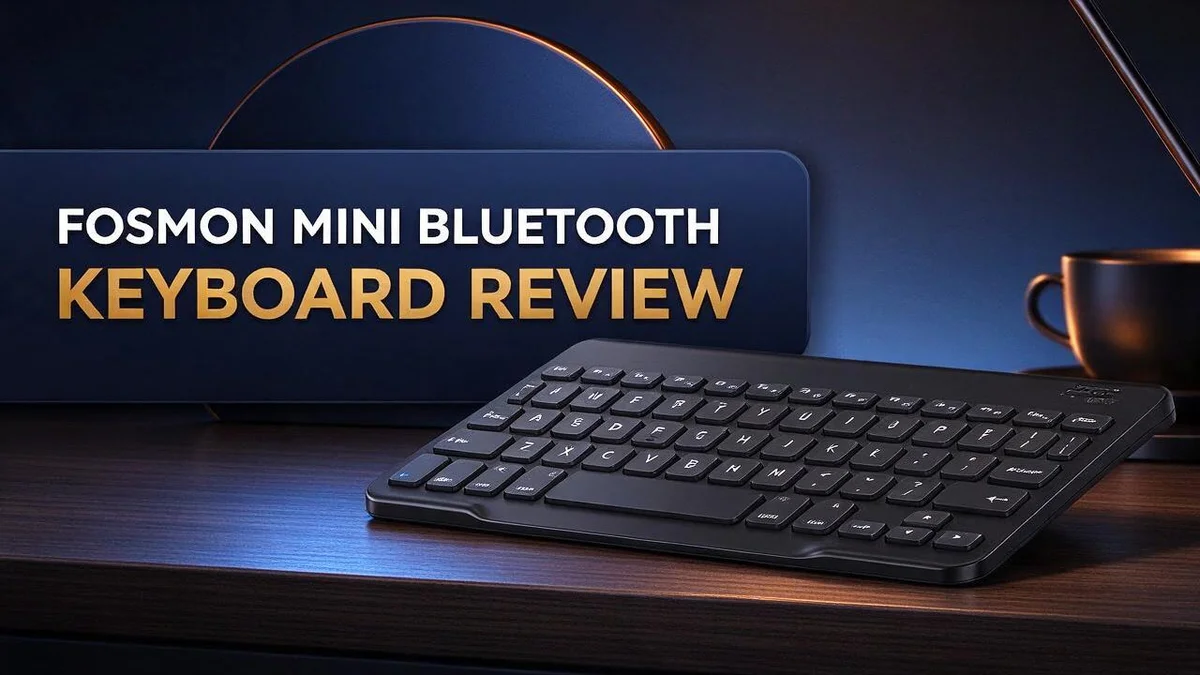
This compact QWERTY keyboard packs a lot into a small frame. It has a touchpad built in, so you do not need a separate mouse.
Connecting is flexible. You can pair it over Bluetooth 5.2 or use the 2.4GHz receiver for a steady link.
Many users enjoy the clicky keys, which feel a lot like the old BlackBerry style. The RGB backlight also adds a fun touch in dim rooms.
It is rechargeable too, so it is easy to take on the go.
Still, it is not perfect. Some owners report pairing problems, and a few say certain keys only work part of the time. Compatibility with consoles and apps can also vary.
In this review, we look at what works well and what does not. You will also learn who this keyboard suits best.
In a Nutshell
-
The touchpad saves extra gear. Most people carry a separate mouse, but this keyboard includes a touchpad. You can move the cursor and type without packing anything else.
-
Storage stays simple. The compact frame fits easily into a drawer, a desk corner, or a small bag. It takes up very little room when you pack up.
-
Home use gets positive feedback. One user found that it works well at home for everyday tasks. It suits relaxed browsing and light typing from the couch.
-
Streaming devices may work. One user reported success with a Fire Stick, so it can help with menu navigation and text entry. Results can vary from one setup to another.
-
Pairing problems do occur. Some owners say the keyboard connects but does not respond to input. Forum posts about Chromecast and Raspberry Pi setups describe this exact issue, so expect some trial and error during setup.
-
Some keys may stop working. One Steam Deck user reported that only some keys responded. Console and app compatibility also varies, so check your device details before you rely on it.
Key Feel and Typing Experience

Last update on 2026-10-28 / Affiliate links / Images from Amazon Product Advertising API Some of the links on this website are affiliate links, which means that at no additional cost to you, I earn a commission if you click through and make a purchase. I only recommend products and services that I believe will add value to my readers. Thank you for your support!
Your fingers need time to adjust. Most people type slowly for the first day or two. Speed usually improves after a few short practice sessions.
Typing on a small keyboard takes some getting used to. Your fingers may feel cramped at first. The tight spacing between keys slows most people down early on.
Sound matters more than many readers expect. The clicks can feel loud in a quiet room. Shared spaces, like offices or bedrooms, may need softer typing.
Lap use works better with a flat surface. Resting the keyboard on your legs can cause missed or doubled letters. A small desk or tray gives steadier results.
Short messages feel natural. Emails, chat replies, and search terms are easy to type. Long documents may tire your hands sooner than expected.
Switching between typing and touchpad use takes practice. Your thumbs may brush the pad while you type. Rest your palms lightly to avoid accidental cursor jumps.
Feel is a personal choice. Some typists like a firm press while others prefer a light touch. Test a few words slowly before you rely on it for important messages.
Backlighting helps in dim rooms. You can see the letters without turning on a lamp. Night use feels more comfortable this way.
Run a quick test right after setup. Type a short paragraph, then check for missed letters. This simple check shows whether the keys suit your style.
Hand position matters a lot. Keep your wrists relaxed and your elbows close to your sides. Good posture reduces strain during longer typing sessions and keeps your hands fresh.
Many people type with two thumbs on a phone, but this layout rewards a steady finger pattern. Practice helps you find a rhythm that feels right.
Overall, the feel suits quick typing. Light messages and short notes come out smoothly. Heavy writing sessions may call for a larger keyboard.
Built-In Touchpad Performance
The touchpad sits right below the keys. Your thumbs can move the cursor without lifting your hands from the typing position.
Cursor movement feels smooth for simple tasks. Clicking links, opening apps, and selecting text all feel natural.
Scrolling is where the pad helps most. Two finger swipes can move through long pages quickly, if your device supports them.
Precision matters more on a small surface. Tiny icons and thin menu items may take a few extra taps to hit.
Long distances need more strokes. Lift your finger and slide again to cover a wide screen.
Click response depends on pressure. A light touch often registers, but a firmer press feels more certain to some users.
Test the pad right after setup. Open a web page, scroll a long article, and highlight a paragraph. This quick check shows how it behaves on your device.
Your device matters here. Streaming boxes, tablets, and computers may handle pointer input in different ways.
Stray touches can cause trouble. A resting thumb may nudge the cursor while you type, so keep your hands light on the keys.
Keep the surface clean. Skin oils and dust can dull tracking over time, so wipe the pad with a soft, dry cloth.
Pointer speed may feel slow at first. Many users adjust the sensitivity in their device settings to speed up movement.
Pad use also tests your patience. Short bursts of cursor work feel easy, but long sessions can strain your wrist if the pad sits far away.
Think about your seating position too. A relaxed posture helps your thumb glide with less effort.
Compare the pad with your habits. If you rely on a mouse for hours, the touchpad may feel slower. If you mostly type, it feels handy.
Give the pad a few days. Muscle memory forms quickly, and most people move the cursor more smoothly after regular use.
Overall, the touchpad handles everyday pointing well. Heavy design work or fast gaming may still call for a dedicated mouse.
Bluetooth and 2.4GHz Pairing
Two connection modes give you flexibility. The keyboard offers Bluetooth 5.2 and a 2.4GHz receiver. Each mode suits a different setup, so pick the one that fits your device best.
Bluetooth works well with phones, tablets, and many laptops. You need no extra parts for this method. Turn on Bluetooth on your device, then select the keyboard from the list.
The 2.4GHz mode uses a small USB receiver instead. Plug it into a free port, and the keyboard links right away. This choice helps with computers or TVs that lack Bluetooth.
Keep the receiver safe when you travel. A tiny receiver can slip out of a bag easily. Keep it in a pocket or pouch when you pack the keyboard.
Look for the mode switch on the keyboard first. Your manual shows the exact position for each mode. Flip to the right setting before you start pairing.
Some computers need a moment to recognize a new USB device. Wait a few seconds after plugging in the receiver before you type. This short pause prevents confusion.
Pair one device at a time to avoid mix-ups. Turn off Bluetooth on other gadgets nearby if they keep grabbing the connection.
Remove old pairings from your device list. Old links can block a fresh connection. Clear them out, then start over with a clean slate.
Keep the keyboard close to the host device during setup. Walls and metal objects can weaken the signal. Move closer if the link feels slow.
A low battery can make connections feel unstable. Charge the keyboard fully before you begin. This small step saves time later.
If the keyboard does not show up, restart your device and search again. This simple step often clears up the issue. Switching modes becomes quick once you know the steps.
Choose the mode that matches your daily routine. Bluetooth suits mobile use, while the receiver suits desk setups with a free USB port.
Top 3 Alternatives
Logitech K380


Last update on 2026-10-27 / Affiliate links / Images from Amazon Product Advertising API Some of the links on this website are affiliate links, which means that at no additional cost to you, I earn a commission if you click through and make a purchase. I only recommend products and services that I believe will add value to my readers. Thank you for your support!
The Logitech K380 is a compact Bluetooth keyboard for people who switch between devices often. It pairs with up to three devices. Press the Easy-Switch key to change between them.
It works with Windows, Mac, Chromebook, iPad, and Android. The round keys feel smooth, and the layout is familiar. You can use it at a desk, in the office, or on the couch.
Logitech Keys-To-Go

Last update on 2026-10-27 / Affiliate links / Images from Amazon Product Advertising API Some of the links on this website are affiliate links, which means that at no additional cost to you, I earn a commission if you click through and make a purchase. I only recommend products and services that I believe will add value to my readers. Thank you for your support!
The Logitech Keys-To-Go is a very light and slim option. You can slip it into a bag or pocket with ease. It connects over Bluetooth to phones, tablets, and computers.
Its rechargeable battery keeps it ready for travel. The keys are quiet, so it works well in shared spaces. Setup takes only a few seconds.
Microsoft Universal Foldable Keyboard

Last update on 2026-10-27 / Affiliate links / Images from Amazon Product Advertising API Some of the links on this website are affiliate links, which means that at no additional cost to you, I earn a commission if you click through and make a purchase. I only recommend products and services that I believe will add value to my readers. Thank you for your support!
The Microsoft Universal Foldable Keyboard folds in half for easy storage. It uses Bluetooth, so you do not need a dongle. It works with many systems, including Windows, Android, and iOS.
The full-size layout helps with long typing sessions. The build feels sturdy, and the battery charges through a standard cable. It suits people who want a full keyboard on the go.
Portability and Everyday Carry
Carrying this keyboard every day feels easy. It slides into a backpack, tote, or laptop sleeve without taking over the space.
Think about your daily route first. A bus ride needs a different setup than a desk day at a coffee shop.
Side pockets and top compartments often work best. Keep it within reach so you never dig through the whole bag.
A zipped sleeve or small pouch adds protection. It keeps crumbs, keys, and loose coins away from the typing surface.
Pack the charging cable in the same pouch. That habit stops you from searching for it at the last minute.
Weight matters more when you walk long distances. Even a light device can feel heavy after a full day of errands.
Airport trips bring their own rules. Keep the keyboard in your carry-on bag so it stays with you during security checks.
Expect questions at security. Some staff ask to see electronics, so place it in a spot you can reach quickly.
Choose a bag with a padded compartment if you carry a laptop too. The keyboard can rest beside it without pressing on the screen.
Lay it flat in the bag rather than standing it on its edge. This keeps the keys from getting bumped or pressed by other items.
Hotel rooms and shared offices can feel different. A small table usually works, but a bed or couch makes typing awkward for many people.
Consider a café or library visit as a test run. A public space shows how well the keyboard handles a new table and lighting.
Heat and moisture need thought too. Avoid leaving it in a hot car or a damp bag, since extreme conditions can harm electronics.
Plan for battery life on long days out. Bring a power bank if you expect many hours away from an outlet.
Pairing can fail at unexpected moments. Some users report connection problems, so keep your phone’s screen keyboard as a backup plan.
Keep a short note in the pouch with your device name. It helps when you pair the keyboard at a new spot.
Good planning turns this keyboard into a reliable travel companion. Think about where it goes, how it gets packed, and what you will do if it stops working on the road.
Pros and Cons
Pros
– Clicky keys feel similar to the old BlackBerry keyboard.
– The touchpad removes the need for a separate mouse.
– The RGB backlight helps you type in dim rooms.
– It works with a Fire Stick for quick couch use.
– Many users find it works well for quick tasks at home.
Cons
– Some users report that it connects but does not respond.
– One Steam Deck user saw only some keys work.
– Compatibility with consoles and apps varies.
Who Should Buy It
Who should buy this keyboard? The answer depends on how you work. Some people gain the most from it, while others should look elsewhere.
Light writers make the best match. If you send short messages, jot quick notes, or fill out forms, this keyboard handles those tasks well. Many people write short replies and never need more.
People with tight desks also benefit. A narrow footprint leaves room for a notebook, a mug, or a snack. Many small apartments and shared offices have little space for extra gear.
Students in lecture halls can use it for note taking. Keep the keyboard on the desk and type while the lecture moves along. Check first that your laptop or tablet pairs without trouble.
Writers who draft on the move may find a fit too. A short session at a train table feels simple. Long reports, however, can tire your hands on such a small layout.
Who should skip it? Heavy typists often prefer a full layout. Long days of data entry call for keys that spread out and give fingers more room. Your wrists may feel tired after hours of use.
Serious gamers should think twice. Timing matters in games, and a small layout with mixed device support can cause frustration. A dedicated gaming keyboard often serves better.
Buyers with a strict device list need extra care. Make a list of every device you plan to use. Then confirm each one works before you rely on the keyboard.
A quick test helps too. Pair the keyboard with your main device and type a sample message. If it responds right away, you can feel confident about daily use.
Think about your typical week before you decide. Count how many hours you type each day. Light use over short periods suits this keyboard, while long sessions call for more comfort. Your habits give you the best answer.
In short, this keyboard suits casual users who value a small setup. It serves people with simple needs well, so match the tool to your routine.
Final Verdict
The bottom line is simple. The Fosmon Mini Bluetooth Keyboard suits people who want a small, flexible typing tool. It does not fit every setup, though.
Think of it as a second keyboard, not a daily main one. It handles short bursts of typing well. Long writing sessions may feel less natural.
Dual connectivity adds real value. You can switch between Bluetooth 5.2 and the 2.4GHz receiver. That flexibility helps when one option suits your device better.
The reported pairing problems matter most. Test the keyboard with your exact device before your return window closes.
Read the seller’s return policy before you buy. Keep the receipt and packaging until you confirm a stable connection.
Try it in a real workday. Use it for a full morning of notes or messages. Real use reveals problems that a short test misses.
Compare it with the keyboard you already use. Note what you miss most, such as key spacing or layout. Those gaps often decide the outcome.
Think about backup options too. Keep your regular keyboard nearby for urgent work. A second option removes stress when a connection fails during important work.
The biggest unknown is your own setup. Every computer, phone, and TV handles Bluetooth a little differently. Compare it against your own gear, not general praise.
Who gets the most out of it? People who want one small unit for quick tasks will benefit. Those who already own a dependable setup may need it less.
Set your expectations with care. Honest expectations lead to happier buyers. Read recent feedback with a fresh eye.
Final recommendation: Buy it for light, mobile use. Skip it if you rely on a specific console or need pairing that never fails.
The product offers appealing features alongside mixed user reports. Balance those two sides before you commit.
Final thought: A small keyboard can solve big problems when it works. Make sure it works with your setup first. Then enjoy the freedom it brings.
Frequently Asked Questions
What should I do if it connects but won’t type?
First, turn the keyboard off and back on. Then remove the old pairing from your device and pair it again. If you use the 2.4GHz receiver, make sure it sits firmly in its USB port.
Can I rely on the touchpad for detailed editing?
The touchpad handles basic pointing and scrolling well. It does not replace a precise mouse for photo editing or design work. Keep a mouse nearby for those tasks.
Can I use it for coding or long reports?
Many people can. The small layout takes time to learn, so expect slower speeds at first. Try a short project before you depend on it for a long deadline.
Which devices should I test first?
Start with the device you use most often. Pair the keyboard and type a few test sentences. This shows you early whether your setup works, and it lets you decide before you commit to the keyboard.

Hello, i’m Ivoria i am the face behind Tech Tracker Blog. I am passionate about my work and love to explore gadgets and share about my experience.