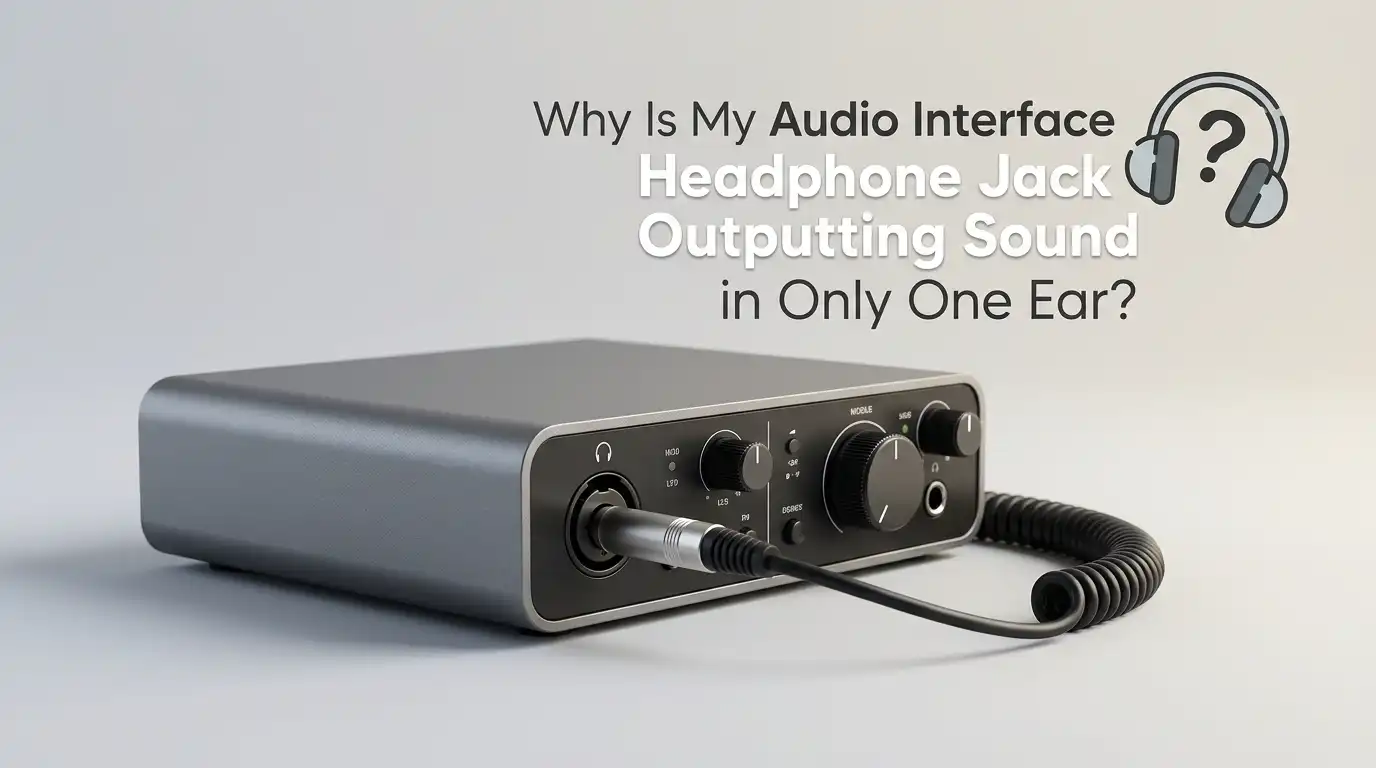
Why Is My Audio Interface Headphone Jack Outputting Sound in Only One Ear?
Plugging in your headphones and hearing audio in just one ear feels frustrating. You expected full stereo sound. Instead, only the left or right side is playing.
This problem affects many producers, podcasters, and gamers using audio interfaces like Focusrite Scarlett, Behringer UMC, PreSonus, or Universal Audio units. The good news is that this issue almost always has a simple cause.
You do not need to replace your gear in most cases. This guide walks you through every fix, from cable checks to DAW settings, so you can get balanced sound back in both ears today.
Key Takeaways
- Cable type matters most. A TS (mono) plug in a stereo headphone jack will only carry signal to one side. Always use a TRS (stereo) cable for headphones.
- Mono tracks in your DAW play through one side when routed to a stereo bus without proper panning. Set the pan to center or duplicate the channel.
- Loose connections and dirty jacks cause partial contact. A gentle wiggle test reveals if the plug is not fully seated or if dust is blocking the contacts.
- Windows or Mac audio balance settings can drift to one side. Check your operating system sound panel for left and right balance sliders.
- Driver issues and outdated firmware sometimes cause channel problems. Reinstall the official driver from the manufacturer site.
- Faulty headphones or a damaged jack are the last things to check. Test with a second pair of headphones before assuming the interface is broken.
Check If Your Headphones Use a TRS or TS Plug
The first thing to inspect is the plug on your headphones. Look closely at the metal tip. A TRS plug has two black rings dividing it into three sections (tip, ring, sleeve). A TS plug has only one black ring. TS plugs carry mono signal only, so plugging them into a stereo headphone jack sends audio to one ear.
Most studio headphones come with a quarter inch TRS plug or a 3.5mm TRS plug. Some instrument cables look similar but are TS. If you grabbed an instrument cable by mistake, that explains the issue immediately.
Pros: This check costs nothing and takes seconds. Cons: You may need to buy a proper TRS cable if yours is TS, which is a small expense.
Inspect the Adapter You Are Using
Many audio interfaces have a quarter inch headphone output. If your headphones use a 3.5mm plug, you need an adapter. Not all adapters are equal. A mono adapter will collapse your stereo signal to one channel. Always use a stereo TRS adapter with three contact points.
Hold the adapter up to the light. Count the black insulator rings. Two rings means stereo. One ring means mono. Replace any mono adapter with a stereo version.
Cheap adapters also wear out fast. The internal solder joints can break, cutting one channel. Try a second adapter if you have one available.
Pros: Stereo adapters are inexpensive and easy to find. Cons: Identifying a faulty adapter visually is sometimes hard since the damage is internal.
Push the Plug All the Way In
Sometimes the simplest cause is the answer. A headphone plug that sits halfway in the jack makes contact with only one channel. Gently press the plug firmly into the jack until it stops. You should feel a small click or resistance when it seats fully.
If the jack on your audio interface feels loose, the internal contacts may be worn. Wiggle the plug slightly while audio plays. If sound flickers between ears, the connection point is the problem.
Try a different jack on the same interface if one is available. Some units have two headphone outputs. This isolates whether the issue is the specific jack or something else.
Pros: Costs nothing and rules out user error fast. Cons: Repeated insertion and removal can wear the jack faster over time.
Clean the Headphone Jack on Your Interface
Dust, lint, and pocket fuzz build up inside headphone jacks. This debris blocks contact between the plug and the internal pins. The result is audio in one ear only, or crackling, or no sound at all.
Power off your audio interface first. Use a can of compressed air to blow into the jack. Hold the can upright and use short bursts. For stubborn dirt, gently insert a wooden toothpick wrapped in a thin layer of cotton dampened with isopropyl alcohol. Twist slowly and pull out.
Never use metal objects inside the jack. They can bend the contact pins permanently.
Pros: Restores function without spending money. Cons: Aggressive cleaning risks damaging the internal contacts if done carelessly.
Test With a Different Pair of Headphones
This step quickly tells you whether the problem lies with the headphones or the interface. Grab a second pair of wired headphones. Plug them into the same jack on your audio interface. Play the same audio source.
If the second pair plays in both ears, your original headphones are damaged. The wire near the plug or near one earcup is the usual failure point. Bend the cable gently along its length while audio plays to find the break.
If both pairs play in one ear only, the interface, software, or cable is the culprit. This narrows your search significantly.
Pros: Isolates the problem in under a minute. Cons: You need a second set of headphones, which not everyone has handy.
Check Your Operating System Balance Settings
Both Windows and macOS have a left and right balance slider buried in their sound settings. If this slider has slipped to one side, audio will favor that ear. This often happens accidentally after system updates.
On Windows, open Sound Settings, click your output device, then Device Properties, and check the balance sliders. Both should read 100 or be centered. On macOS, open System Settings, go to Sound, click Output, and confirm the balance slider sits in the middle.
Some audio interface control panels (like Focusrite Control or UAD Console) also have their own balance and pan controls. Check those too.
Pros: Free, fast, and fixes the issue instantly when this is the cause. Cons: The setting can drift again after updates, so recheck periodically.
Look at Your DAW Track Routing and Panning
If the issue happens only inside your DAW (Ableton, FL Studio, Pro Tools, Logic, Reaper, Studio One), the cause is almost always track routing. Recording a microphone or guitar through input 1 of your interface creates a mono signal. If you record that mono signal onto a stereo track without proper handling, it lands on the left channel only.
Fix this by either changing the track to mono, or by setting the pan control to center, or by duplicating the signal to both channels. Most DAWs have a mono button or a channel mode setting on each track.
Also check the master bus. A misrouted send or a stuck pan knob on the master output can cause one sided playback.
Pros: Solves studio recording issues at the source. Cons: Different DAWs handle mono and stereo routing differently, so you may need to consult specific software documentation.
Verify Your Audio Interface Driver Is Up to Date
Outdated or corrupted drivers cause strange channel behavior. Visit the official website of your audio interface brand. Download the latest driver for your operating system. Uninstall the old driver first through your system control panel.
Restart your computer after installing the new driver. Open your DAW and your operating system sound settings to test. A clean driver install often clears mysterious one ear issues that no other fix solves.
If you recently updated Windows or macOS, the new OS version may not support your old driver. Check the manufacturer site for compatibility notes.
Pros: Fixes deep software bugs that surface checks miss. Cons: Driver installs take time and sometimes require disabling security software temporarily.
Test the Interface With a Different Source
Plug your interface into a different computer if possible. Use a laptop, a friend’s machine, or a tablet that supports USB audio. Play music through the headphone jack.
If the audio plays in both ears on the new device, your original computer has a software or settings issue. If the problem persists on every device, the interface itself has a hardware fault. This test removes all software variables in one move.
You can also test by plugging headphones directly into your phone or computer’s built in jack. This confirms the headphones work properly outside the interface entirely.
Pros: Definitively separates hardware from software faults. Cons: Requires access to another device, which is not always practical.
Check the Mono Switch on Your Interface
Many audio interfaces have a mono button on the front panel. This button sums the left and right channels so both ears hear the same signal. If your DAW or source is sending audio to only one channel, pressing mono temporarily forces sound into both ears.
This is more of a workaround than a fix. It tells you the hardware works fine and the issue is upstream in your signal chain. Brands like Focusrite, PreSonus, and SSL include this feature on their newer units.
Use the mono button while you track down the real source of the one channel signal in your software.
Pros: Instant temporary solution while troubleshooting. Cons: Mono playback loses stereo imaging, so it is not a permanent fix for music production.
Inspect the Internal Cable Solder Joints
If you are comfortable opening the headphone shell, inspect the solder joints at the earcup and at the plug. A broken solder connection on the cable’s ground or signal wire is a common reason for one sided audio. Headphones with detachable cables make this easy. Just swap the cable for a new one.
For fixed cables, you can sometimes resolder a broken joint if you have basic soldering skills. Otherwise, replacement is more practical. Cable damage usually happens within the first six inches from the plug due to constant bending.
Pros: Repairs save the cost of new headphones. Cons: Requires soldering tools and skill, and warranty may be voided.
Consider That the Interface May Be Faulty
If you have tried every step above and the problem stays, your audio interface may have a hardware fault. The internal DAC (digital to analog converter) or the headphone amplifier circuit can fail. Heat, power surges, and age all contribute.
Contact the manufacturer’s support team. Many brands offer warranty service for two or three years from purchase. Provide them with a clear description of every step you tried. This speeds up the support process.
If your unit is out of warranty, repair shops can sometimes replace the headphone jack or amp chip. Compare the repair cost against a new interface before deciding.
Pros: Manufacturer support often resolves issues at no cost during warranty. Cons: Repairs outside warranty may cost more than replacement.
When to Replace the Headphones or the Interface
Sometimes the math just does not work in favor of repair. Budget headphones under a certain price point are usually not worth fixing if the cable is internally damaged. Audio interfaces older than five or six years may not be worth repairing either, especially if newer models offer better features.
Look for signs that point to replacement: recurring intermittent dropouts, multiple failed channels, scratchy volume knobs, or USB connection problems. These indicate broader wear and tear.
Set a budget and research current models. A working unit, even an entry level one, will outperform a damaged premium unit every time.
Pros: A fresh unit removes all doubt and gives you reliable sound. Cons: Replacement costs money and requires time to learn new software or controls.
FAQs
Why does my audio play in stereo on speakers but only one ear on headphones?
This points to a cable or jack issue rather than a source problem. The signal leaving the interface is stereo, but something between the headphone output and your ears is breaking the stereo connection. Check your TRS cable, adapter, and the headphone jack itself.
Can a TRRS headphone plug work in an audio interface jack?
TRRS plugs are made for phones and have an extra ring for a microphone signal. When you insert a TRRS plug into a TRS headphone jack, the contacts often misalign. This causes one ear to drop out. Use TRS headphones with audio interfaces for best results.
Why does only the left channel record from my microphone?
A single microphone creates a mono signal that lands on the left channel of a stereo track by default. This is normal DAW behavior. Set the track to mono, or pan it to center, or use input duplication to fix this.
Does the mono button on my interface fix the problem permanently?
No. The mono button is a monitoring tool. It sums left and right to both ears so you can hear the full signal during tracking. It does not change how your recordings are stored or played back later.
How do I know if my audio interface is dead?
Test it on a different computer with different headphones and a different cable. If audio still comes through one ear only after every variable has changed, the interface itself is the problem. Contact the manufacturer before assuming total failure.
Will cleaning the headphone jack damage my interface?
Compressed air is safe when used in short bursts with the unit powered off. Avoid liquids, metal tools, and excessive force. A dampened cotton tip with isopropyl alcohol is also safe if used gently and allowed to dry fully before use.
Why did my audio suddenly start playing in one ear after a Windows update?
System updates can reset audio balance sliders or install generic drivers that conflict with your interface. Check your sound balance settings first, then reinstall the official driver from your interface manufacturer’s website.

Hello, i’m Ivoria i am the face behind Tech Tracker Blog. I am passionate about my work and love to explore gadgets and share about my experience.