
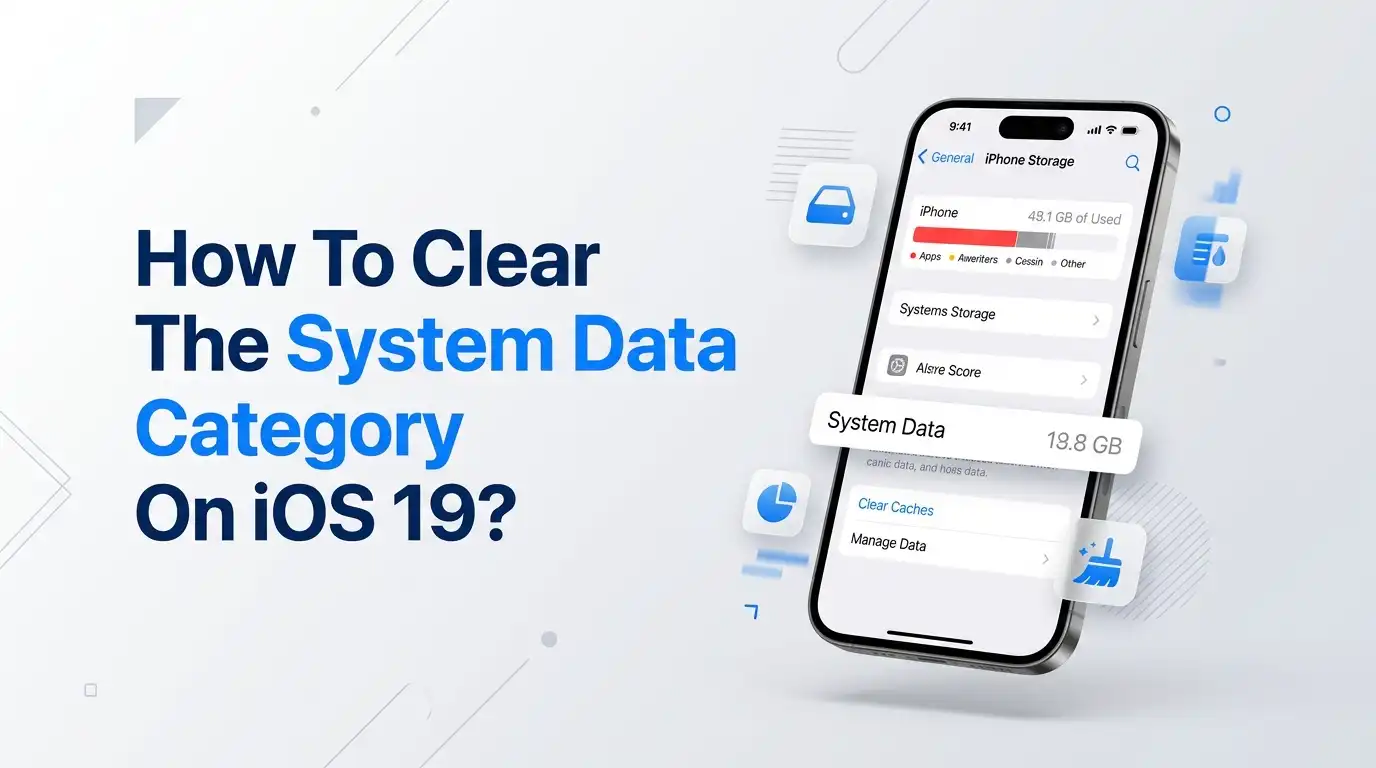
How To Clear The System Data Category On iOS 19?
Your iPhone storage fills up fast. You delete photos, remove apps, and clear videos. Yet one mysterious category keeps eating your space. It says System Data, and it gives you no clear button to wipe it.
This problem frustrates millions of iPhone users. The System Data category can balloon from a few gigabytes to over 50GB. Sometimes it grows so large that you cannot update iOS or take new photos.
The good news is simple. You can shrink this category. You just need the right steps in the right order. This guide gives you every working method for iOS 19, explained in plain language.
Let me walk you through what System Data really is, why it grows, and how to bring it back under control today.
In a Nutshell:
- System Data holds caches, logs, and temporary files. It includes Siri voices, fonts, Spotlight index data, and leftover files that the system creates while you use your iPhone.
- You cannot fully delete it, but you can shrink it. Apple does not give you a single delete button. Instead, you reduce it by clearing the files that feed into it.
- The biggest culprits are Safari cache, Messages history, and streaming app caches. These three sources alone often account for most of your bloated System Data.
- A simple restart frees space fast. Restarting your iPhone lets iOS clear out temporary files automatically. This is the easiest first step.
- iCloud Photos toggling and a full backup restore are the strongest fixes. When normal methods fail, these advanced options reset the bloated data and bring numbers back to normal.
- Regular habits keep it small. Clearing cache monthly and managing app data stops System Data from growing out of control again.
What Is The System Data Category On iOS 19
System Data is a storage category that holds files your iPhone needs but does not show you directly. Apple describes it as caches, logs, and other resources currently in use by the system. It also includes temporary files.
This category was once called Other in older iOS versions. Apple renamed it to System Data in iOS 15, and it keeps the same name through iOS 19. The contents stay similar across these versions.
Inside System Data you find Siri voices, fonts, dictionaries, system logs, and the Spotlight search index. You also find streaming caches and browser data. These files build up quietly as you use your phone every day.
The tricky part is that iOS controls this category automatically. You do not get a direct delete option. That is why so many users feel stuck when the number climbs higher and higher.
Why Does System Data Get So Large On iOS 19
System Data grows because your iPhone constantly creates temporary files. Every time you stream music, watch videos, or browse the web, your phone stores cache data to speed things up. This cache lands in System Data.
Streaming is a major cause. When you play songs on Apple Music or Spotify, your iPhone caches audio for smooth playback. Over months, this cache can reach several gigabytes without you noticing.
Browser activity adds even more. Safari saves website data, images, and history so pages load faster on your next visit. Heavy web users often carry huge Safari caches inside their System Data.
Failed data transfers also cause spikes. When you move data from an old iPhone to a new one and the transfer fails, iOS sometimes holds onto leftover files. This bug can inflate System Data to absurd levels overnight.
How To Check Your Current System Data Usage
Before you clean anything, you should see how much space System Data uses. This gives you a baseline number to compare against after each method. It also confirms whether System Data is truly the problem.
Open the Settings app on your iPhone. Tap General, then tap iPhone Storage. Wait a few seconds for the storage bar to load fully at the top of the screen.
Scroll all the way to the bottom of the app list. You will see a row labeled System Data with a gray color. The number beside it shows how many gigabytes it currently uses.
Write this number down or take a screenshot. A healthy System Data size sits between 5GB and 20GB. If yours shows 30GB, 50GB, or more, you have real bloat that needs the methods below.
Pros: This step is fast and free, and it gives you clear proof of the problem. Cons: The number updates slowly, so you may need to wait a moment to see accurate figures.
Restart Your iPhone To Clear Temporary Files
The simplest fix is a restart. When you turn your iPhone off and on, iOS automatically clears many temporary files that sit inside System Data. This often frees several gigabytes with zero effort.
A normal restart works for most people. Press and hold the side button along with a volume button until the power slider appears. Slide it to turn off, wait thirty seconds, then power back on.
For stubborn cases, try a force restart. Press and quickly release volume up, press and quickly release volume down, then press and hold the side button until the Apple logo appears. Release the button when you see the logo.
Check your System Data number after the phone fully boots. You may notice an immediate drop. Pros: This method is free, fast, and risk free. Cons: The space savings can be small, and the data may build back up within days.
Clear Safari Cache And Website Data
Safari stores a lot of hidden data. Every website you visit leaves behind images, scripts, and history files. These pile up inside System Data and can take several gigabytes over time.
Clearing this cache is easy. Open Settings, then tap Apps, and select Safari. Scroll down until you find Clear History and Website Data. Tap it and confirm your choice.
You can choose a time frame for what gets cleared. Select All History for the deepest clean, or pick a shorter range to keep recent browsing. The longer the range, the more space you free.
Remember that this also removes your browsing history and saved logins for those sites. So you may need to sign back into some websites. Pros: This often frees noticeable space and speeds up Safari. Cons: You lose history and may need to log in again on frequent sites.
Manage And Delete Old Messages
The Messages app keeps your texts forever by default. If you send and receive many photos, videos, or large files, this history grows huge. All of it counts toward your storage and feeds System Data.
You can set messages to delete automatically. Open Settings, tap Apps, then tap Messages. Scroll to Message History and tap Keep Messages. Change the setting from Forever to 1 Year or 30 Days.
When you confirm, iOS removes older messages past your chosen limit. This can free a large amount of space if you have years of conversations stored on your device.
Back up any important texts or attachments before you change this setting. Once deleted, those messages are gone for good. Pros: This frees major space for heavy texters and keeps your app tidy. Cons: You permanently lose older conversations and shared media.
Clear Cache From Streaming Apps
Streaming apps like Spotify, Apple Music, YouTube, and Netflix store cache to play content smoothly. This cache often lands in the System Data category and grows steadily with daily use.
Each app handles cache clearing differently. In Spotify, tap your profile picture, open Settings and privacy, then tap Clear cache. Other apps hide this option inside their own settings menus under storage or data.
For Apple Music and Podcasts, deleting downloaded songs and episodes you no longer need also helps. Removing old downloads frees space that the system counts as cached data.
Check each streaming app you use often and clear what you can. This step adds up quickly across multiple apps. Pros: This targets a real cause of bloat and frees solid space. Cons: Your apps may load slightly slower at first as they rebuild fresh cache.
Offload Unused Apps To Free Space
iOS lets you offload apps you rarely open. Offloading removes the app itself but keeps your documents and data. This frees space while letting you restore the app later with your data intact.
You can turn this on automatically. Open Settings, tap General, then iPhone Storage. Look for Offload Unused Apps and tap Enable. iOS will then remove apps you do not use when storage runs low.
You can also offload apps one by one. Tap any app in the storage list, then tap Offload App. This is useful for large apps you want to keep but do not need right now.
Offloading sometimes clears app related junk that sat inside System Data. Pros: This keeps your data safe while freeing space, and it works automatically. Cons: Offloaded apps need a redownload to reopen, which requires internet and time.
Toggle iCloud Photos To Reset Bloated Data
This method works like magic for many users. When iCloud Photos holds onto leftover or failed sync data, System Data swells. Toggling the feature off can purge that stuck data instantly.
Open Settings, tap your name at the top, then tap iCloud, and select Photos. Turn off the Sync this iPhone option. Wait a few minutes and check your System Data number again.
Many users report that the entire bloated System Data wipes clean after this step. The phone releases files it was holding for a sync that never finished correctly.
After the number drops, you can turn iCloud Photos back on to resume normal syncing. Pros: This often clears huge amounts of stuck data fast. Cons: Toggling off pauses photo syncing, and you must wait for a full resync afterward, which uses data and battery.
Turn Off Analytics And Diagnostic Logs
Your iPhone creates diagnostic logs to share data with Apple. These logs sit inside System Data and grow over time. Turning off analytics stops new logs from piling up on your device.
Open Settings, tap Privacy and Security, then scroll to Analytics and Improvements. Turn off the Share iPhone Analytics toggle. This stops your phone from generating and storing fresh diagnostic data.
After you toggle this off, restart your iPhone. The restart helps iOS clear out logs it already created. Then check your System Data size to see if the change helped.
This method gives smaller gains than others, but every gigabyte counts when storage is tight. Pros: This is free, private, and easy to do. Cons: The space savings are usually modest, and Apple receives less data to improve future iOS versions.
Update iOS To Fix Storage Bugs
Sometimes System Data bloat comes from a software bug, not your actual files. Apple fixes these bugs in iOS updates. Installing the latest version can shrink your System Data automatically.
Open Settings, tap General, then tap Software Update. If an update is available, download and install it. Make sure your phone has enough free space and battery before you start.
If your storage is too full to update, use the methods above first. You need a little free space to install any update. Once installed, the new version may clear bugged data on its own.
Keeping iOS current also prevents future storage problems. Pros: This can fix the root cause and improves your phone overall. Cons: Updates need free space to install, and rarely a new version may introduce its own temporary bloat until later patches.
Back Up And Restore Your iPhone As A Last Resort
When nothing else works, a full backup and restore gives the deepest clean. This process wipes your iPhone and rebuilds it fresh. It clears almost all stuck System Data in the process.
First, back up your iPhone to iCloud or to a computer. Make sure the backup completes fully so you lose nothing. Then erase your iPhone through Settings, General, Transfer or Reset iPhone.
After the erase, restore from your backup. The fresh setup often brings System Data back to a normal size. Your apps, photos, and settings return as they were before.
Note that some users find the bloat returns after restoring from the same backup. In that case, set up as new for the cleanest result. Pros: This is the most thorough fix available. Cons: It takes hours, needs a reliable backup, and risks data loss if the backup fails.
Smart Habits To Keep System Data Small Long Term
The best fix is prevention. Good habits stop System Data from ever growing out of control again. A few minutes each month keeps your storage healthy and your phone fast.
Clear your Safari cache and streaming app caches once a month. Set Messages to auto delete after a year. Restart your iPhone weekly to let iOS clear temporary files on its own.
Delete apps you no longer use, and offload large ones you rarely open. Move photos and videos to iCloud or a computer if your local storage runs low. These small steps prevent big buildups.
Pros: These habits keep storage stable and avoid emergency cleanups. Cons: They require ongoing attention, and you must remember to repeat them regularly for the best results.
Frequently Asked Questions
Why can I not delete System Data directly on iOS 19?
Apple does not give you a delete button for System Data. iOS manages this category on its own. You reduce it indirectly by clearing the files that feed into it, such as caches, messages, and logs. The system then frees the space automatically over time.
How much System Data is normal on an iPhone?
A healthy System Data size sits between 5GB and 20GB for most users. Heavy users may see slightly more. If your System Data climbs past 30GB or 50GB, you likely have bloat from a bug, failed transfer, or large cache buildup that needs cleaning.
Will clearing System Data delete my photos or important files?
No, the standard methods do not delete your photos, contacts, or personal files. Clearing Safari cache removes browsing history, and changing Messages settings removes old texts. Always back up your device before a full restore, since that method wipes everything before rebuilding.
Does restarting my iPhone really reduce System Data?
Yes, a restart often frees several gigabytes. When your iPhone reboots, iOS clears many temporary files stored in System Data. The savings vary by device, and the data may rebuild over days. Still, restarting is the easiest and safest first step to try.
How often should I clean my System Data?
Once a month works well for most people. Clear caches, manage messages, and restart your phone on a regular schedule. Heavy streamers and web users may benefit from cleaning more often. Regular habits prevent large buildups and keep your iPhone running smoothly.
What if my System Data is still huge after trying everything?
If the methods above fail, a full backup and restore is your strongest option. Back up your data, erase the phone, then restore. If bloat returns from the same backup, set up your iPhone as new. This gives the cleanest possible result.

Hello, i’m Ivoria i am the face behind Tech Tracker Blog. I am passionate about my work and love to explore gadgets and share about my experience.